
Overview
The Events screen shows a log of all the events that occurred in the selected Site during a selected time range. Events are generated by the Cloud and by the devices deployed in the Site, for example, when the alert configuration is changed, when devices are added to or removed from the Site, or when a critical condition is detected.
This screen helps the user to audit the changes made to the Site, track the activity of the devices and troubleshoot issues by reviewing what happened and when.
In the Events screen, the user can:
-
View the log of events for the selected Site and time range.
-
Search the events log.
-
Filter the events by Source, Device, Module and Level.
-
View the detailed metadata of each event.
-
Download the events log.
Access the Events Screen
-
Select Sites from the left menu bar of Kognitive Cloud.
-
In the Organization field, select the required Organization or sub-organization from the dropdown menu.
-
In the Site field, select the required Site from the dropdown menu.
-
Click the Events tab to open the Events screen.
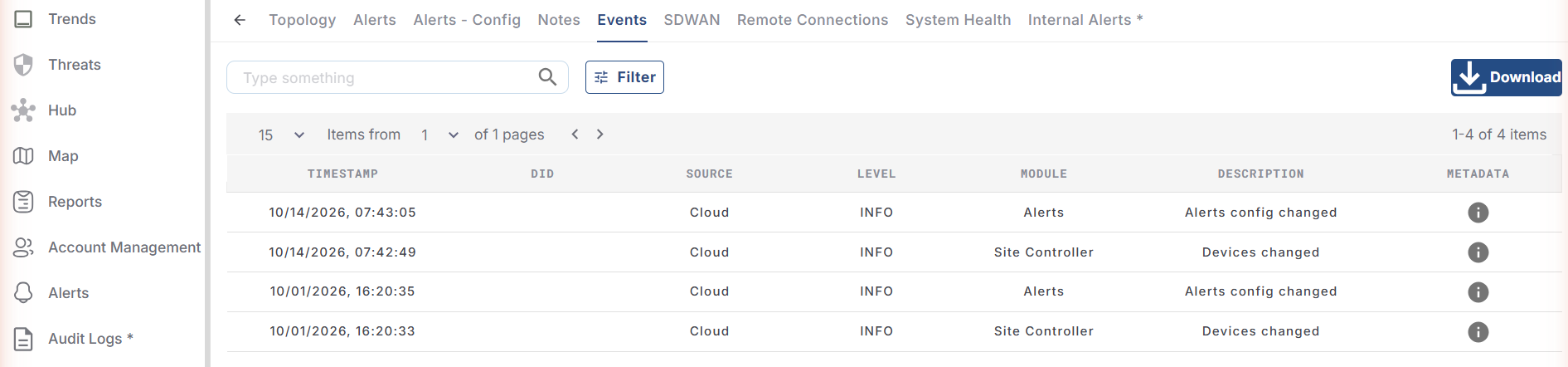
The Events screen opens and shows the events table for the selected Site.
Select the Time Range
The events table shows only the events that occurred within the selected time range. The start and end date/time of the selected range are shown to the left of the time range dropdown at the top right corner of the screen.
-
Click the time range dropdown at the top right corner of the screen.
-
Select one of the predefined time ranges - Last 15 min, Last 1 Hr, Last 6 Hr, Last 12 Hr, Last 1 Day, Last 7 Days, Last 30 Days or MTD (Month to Date).
-
To use a custom time range, select the required date and time in the From and To fields and click Apply. Click Cancel to close the dropdown without making changes.
The events table refreshes and shows the events of the selected time range.
Events Table
The events table shows the following information:
-
Timestamp - Date and time when the event occurred
-
DID - Identification Number of the Device that generated the event
-
Source - Source of the event (for example, Cloud)
-
Level - Severity level of the event (for example, INFO, SEVERITY_CRITICAL)
-
Module - Module in which the event occurred (for example, Alerts, Site Controller)
-
Description - Short description of the event (for example, Alerts config changed, Devices changed)
-
Metadata - Detailed information about the event
If there are no events for the selected Site and time range, the message No data available is shown.
View Metadata
-
Hover the cursor on the info icon in the Metadata column of an event.
-
A pop-up opens and shows the complete details of the event in JSON format. For example, for an Alerts config changed event, the pop-up shows the previous and updated alert configuration.
-
Scroll inside the pop-up to view the complete details.
Navigate the Table
-
Use the Items per page dropdown at the top left corner of the table to select the number of events shown on each page.
-
Use the page dropdown or the < and > arrows to move between the pages.
-
The total number of events is shown at the top right corner of the table.
Search Events
-
Enter the required text in the Type something search field.
-
The events table shows only the events that match the entered text.
Filter Events
-
Click the Filter button. The Event Filters pop-up box opens.
-
Under Sources, select the checkboxes of the sources for which the user wants to view the events.
-
Under Devices, select the checkboxes of the devices for which the user wants to view the events.
-
Under Modules, select the checkboxes of the modules for which the user wants to view the events.
-
Under Levels, select the checkboxes of the severity levels for which the user wants to view the events.
-
Click Apply Filter.
The events table refreshes and shows only the events that match the selected filters.
-
Select the All checkbox in a section to select all the options in that section.
-
The options listed in each section depend on the events recorded for the selected Site and time range. If there are no events for a section, No Records is shown.
-
Click Clear Filter to remove the selected filters.
-
Click the X icon to close the Event Filters pop-up box.
Download Events
-
Click the Download button at the top right corner of the screen to download the events log.
-
The Download button is shown only when there are events available for the selected time range.