
The Kognitive Cloud by Kognitive Networks is a comprehensive cloud-based platform designed for network management and monitoring. It provides users with capabilities such as site management, trend analysis, event alerts, reporting, account management, and inventory control. Kognitive Cloud also includes features for quota control, Starlink Cloud integration, and captive network administration. This portal is essential for efficient management of Kognitive Networks' hardware and software solutions, offering users a centralized and intuitive interface for overseeing their network.
Login
-
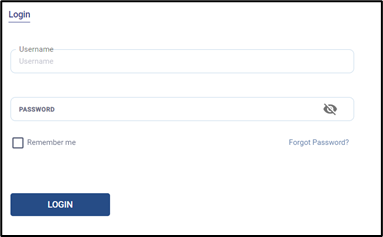
The Login Screen enables the user to login into their account.
-
The users can access the account using their unique credentials.
-
The below details will be entered by the user.
-
Username – Username of the user
-
Password – Password of the user
-
-
Click the eye icon in the Password field to show or hide the entered password.
-
Select the Remember me checkbox to remember the login details on this browser.
-
Click LOGIN to login into the account.
-
In case the user forgets the Password, click on Forgot Password? to reset it.
-
The Forgot Password screen opens. Enter the registered EMAIL address of the account and click the RESET PASSWORD button. The password reset instructions will be sent to the entered email address.
Sign in with Single Sign-On (SSO)
-
Organizations that have Single Sign-On configured can login using their organization credentials.
-
Click the Sign in with Single Sign-On → link on the Login screen.
-
Enter the SSO Organization ID. The SSO Organization ID is configured by the organization admin. If the user is not aware of the SSO Organization ID, contact the organization admin.
-
Click the SIGN IN WITH SSO button and complete the login using the organization’s identity provider.
-
Click ← Back to password login to return to the Username/Password login screen.
Kognitive Cloud Homepage
-
Clicking the LOGIN button opens the Kognitive Cloud Homepage.
-
The Sites screen is shown by default after login. The left menu bar lists the screens available to the user: Sites, Trends, Threats, Hub, Map, Reports, Account Management, Alerts, Audit Logs, S/W Configuration, Inventory, Kontrol, Content Filter, Starlink, Captive portal, Topology and Torm Dashboard. The Knowledge Base link at the bottom of the menu opens the user guide. The available options depend on the access privileges of the user account.
-
The top right corner of the screen shows the selected time zone (for example, IST), the current date and time and the user name dropdown.
-
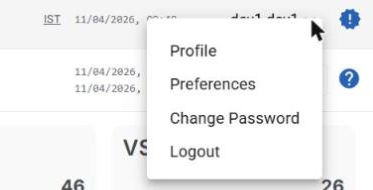
Click the user name dropdown to access the Profile, Preferences, Change Password and Logout options.
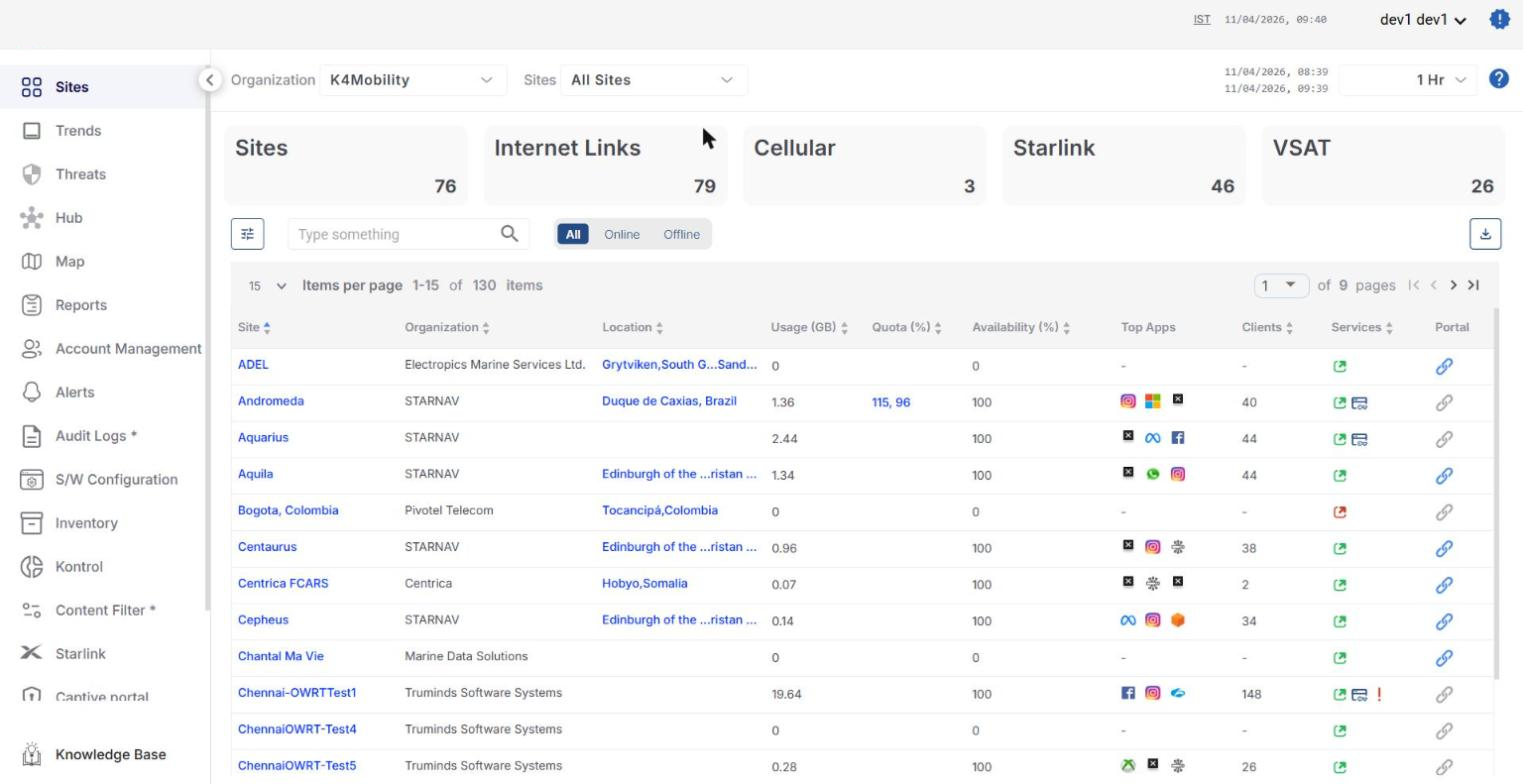
The Homepage of the Kognitive Cloud consists of the below screens. The functions of these screens are explained in the following pages:
Password Reset
-
To reset the password of the Kognitive Cloud account, click the user name dropdown at the top right corner of the screen.
-
Click Change Password option from the dropdown menu.
-
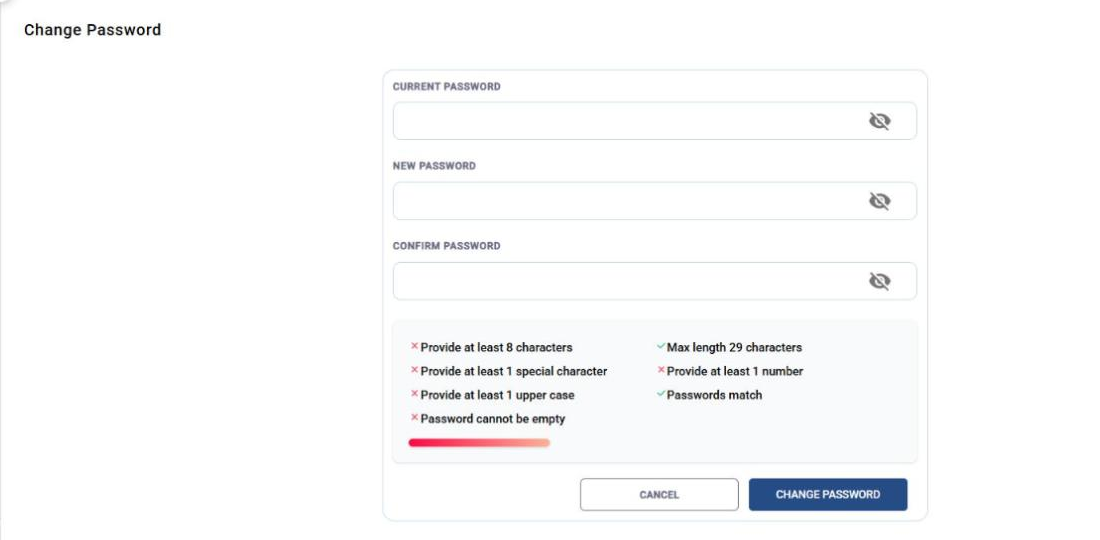
The Change Password screen opens as shown below:
-
Enter the Current Password.
-
Enter the New Password as per the on screen guidelines. The password must contain 8 to 29 characters, including at least 1 upper case letter, 1 number and 1 special character. The guidelines turn green as they are satisfied.
-
Re-enter the New Password to confirm it.
-
Select CHANGE PASSWORD button to change the password.
-
Select Cancel button to cancel the operation.