
This manual guides the user through the steps required to set up and use the Remote Connections screen. This screen enables the user to create remote connections for the WAN/LAN addresses connected to the network. These remote connections can be accessed by creating a unique URL called Konnect URL. The Konnect URLs can be used to access these WAN/LAN addresses through any browser from their laptop/computer (currently only HTTP/HTTPS are supported).
-
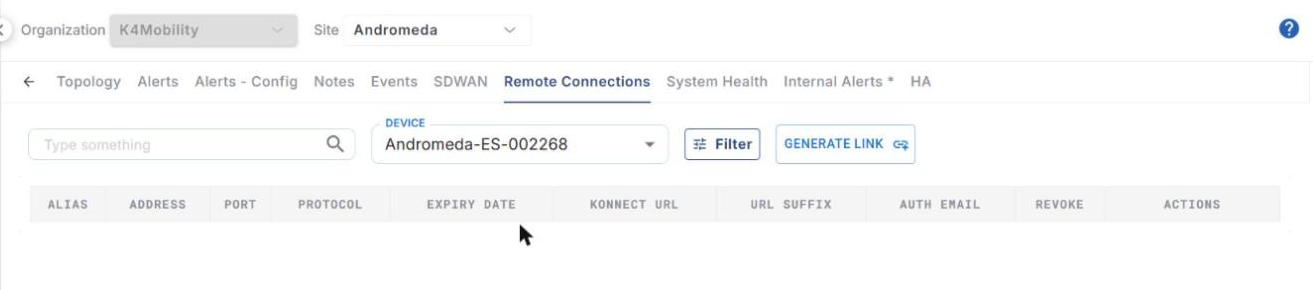
Click the Remote Connections tab to open the Remote Connections screen.
-
Select the required device from the dropdown menu in the Device field. The dropdown lists all the devices deployed in the selected site.
-
The table lists the remote connection links (Konnect URLs) available for the selected device. It shows the following information:
-
Alias - Alias name of the remote connection
-
Address - IP address of the remote device
-
Port - Port of the remote device
-
Protocol - HTTP / HTTPS
-
Expiry Date - Date and time when the link expires
-
Konnect URL - The remote connection link
-
URL Suffix - Suffix added to the Konnect URL
-
Auth Email - Authorization email address to which the verification codes are sent
-
Revoke - Button to revoke or restore the link
-
Actions - Icons to connect, copy, edit or delete the link
-
-
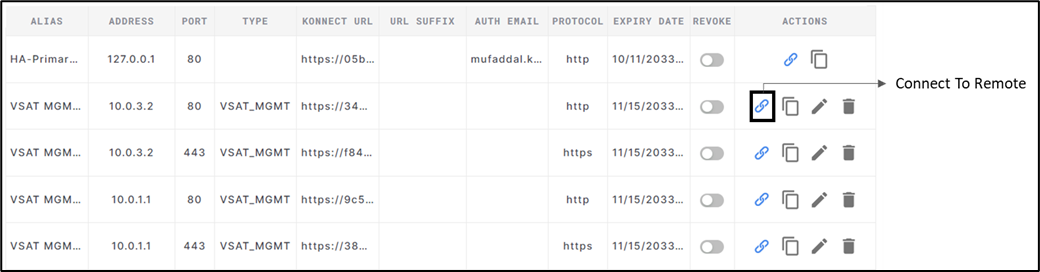
System generated links are prepopulated for the existing WAN interfaces and for the devices monitored on LAN (LAN Device Monitoring). The Edge Portal link of the device is listed as the first row. Click the Connect to remote icon in the first row to open the Edge Portal directly.
Connect to Remote
-
Click the Connect to remote icon in the Actions column to use a link and connect to the remote address.
-
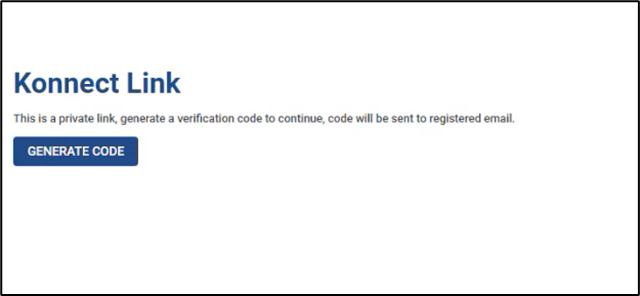
The user is redirected to the following screen:
-
Click Generate Code button to generate a one-time verification code. This code will be active for one hour since generation or until it is used.
-
The verification code will be sent to the Authorization Email address of the link.
-
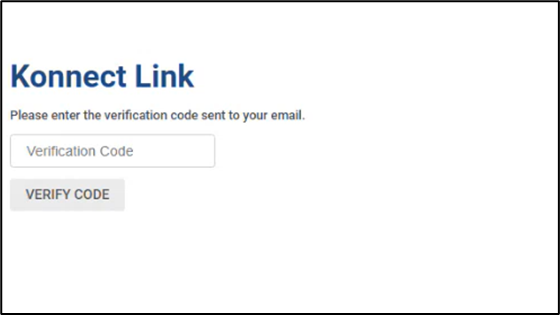
Enter the Verification code and click the Verify Code button.
-
If the authentication is successful, the user will be allowed to access the device that is connected to that address. Links with no Auth Email set are considered open and will be accessible by anyone having the link.
-
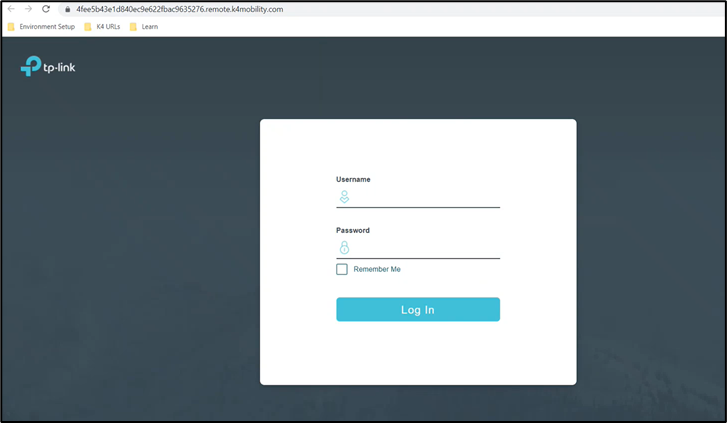
For example, if the user selects the remote link of a TP Link device running in that address and port combination, the user will be taken to the admin panel of that device as shown below:
Manage Links
-
Click the Copy icon to copy the Konnect URL.
-
Click the Edit icon to edit the Alias, URL Suffix, Auth Email and Expiry date of the link.
-
Click the Delete icon to delete the link.
-
Click the Revoke button to revoke a link. Once revoked, the URL stays in the system but cannot be used to connect to the remote address. The revoked URLs can be restored and used again.
-
Enter the required text in the Type something search field to search the links.
-
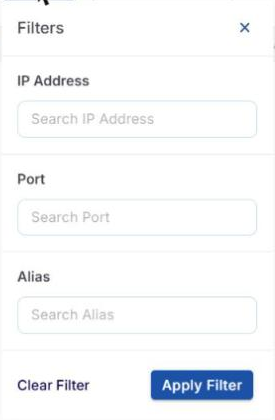
Click the Filter button to filter the table based on the IP Address, Port and Alias. Enter the required values and click Apply Filter. Click Clear Filter to remove the filters.
Generate Konnect Link
-
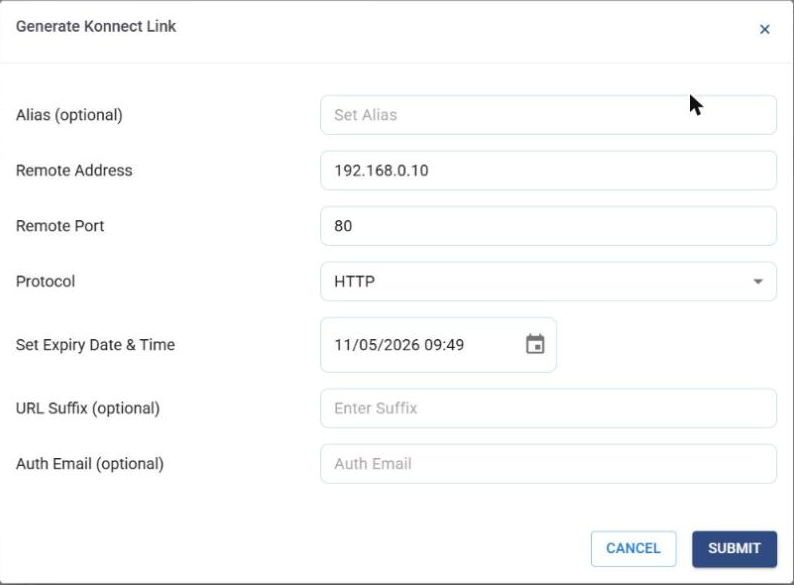
Click the GENERATE LINK button to create a new remote connection link for the selected device. The Generate Konnect Link dialog box opens.
-
Enter the Alias name of the link. This is an optional field.
-
Enter the Remote Address (valid IPv4 address) of the remote device.
-
Enter the Remote Port (1-65535).
-
Select the Protocol (HTTP/HTTPS) from the dropdown menu.
-
Set the Expiry Date & Time of the link using the date-time picker. By default, the expiry is set to one day from the current time.
-
Enter the URL Suffix. This is an optional field.
-
Enter the Auth Email. This is the authorization email to which the verification codes will be sent. This is an optional field. The links with no Auth Email set are considered open and will be accessible by anyone having the link.
-
Click SUBMIT to create the link. The new Konnect URL is added to the table. Click CANCEL to close the dialog box without creating the link.
Troubleshooting
The user might encounter few errors occasionally when trying to access the remote connections. The below shown images are example of some of the common errors that the users might encounter.
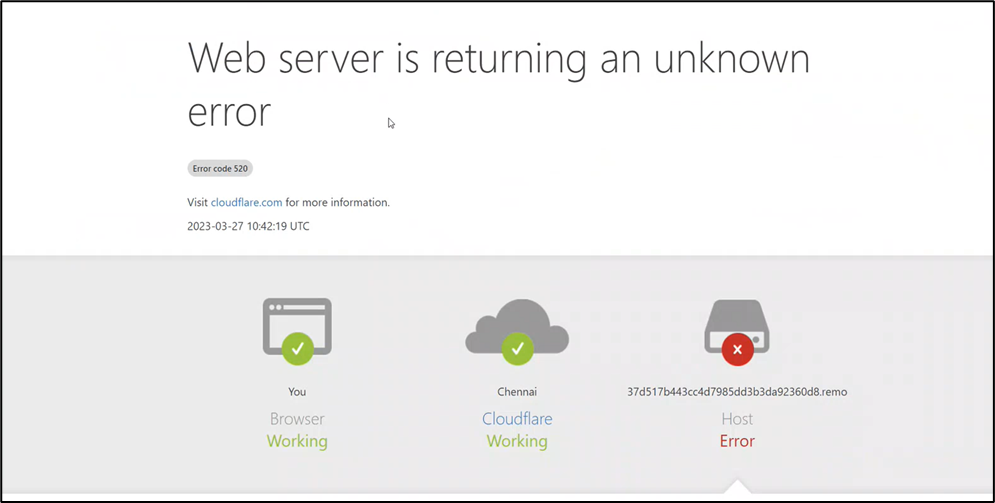
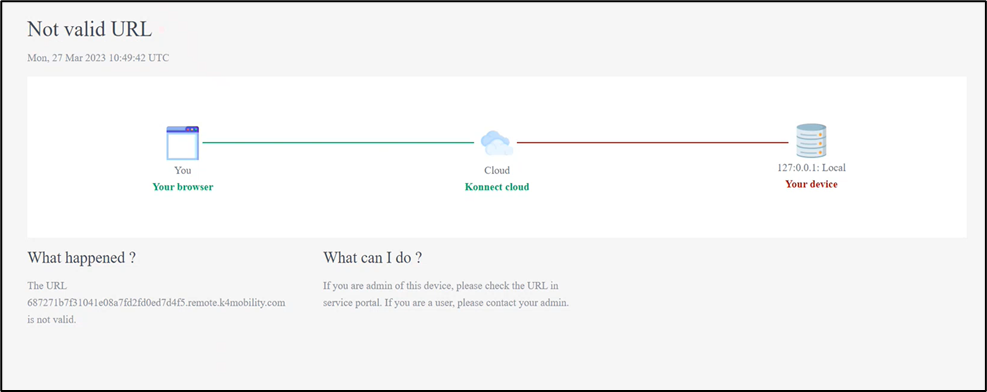
Try the below steps to rectify the error:
-
Check the Internet connectivity.
-
Check if the Konnect URL is valid.
-
Restart the system or try accessing again after some time.
-
The device might be disconnected from the system. Check the device, reconnect it and try again to access the remote URL.
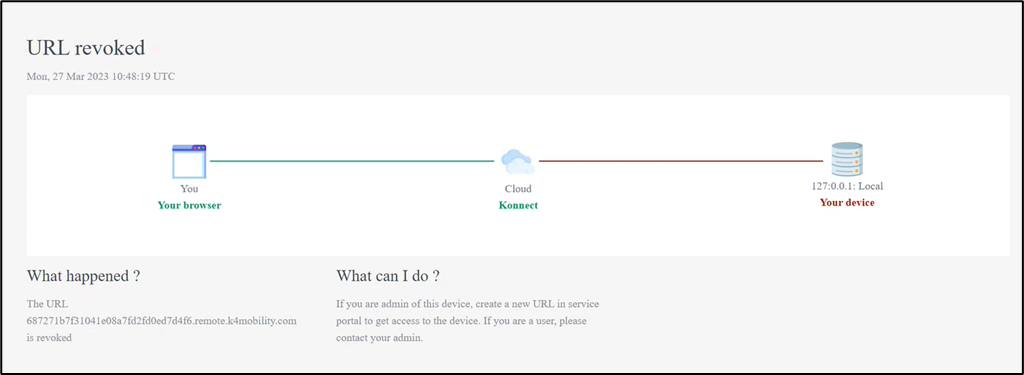
The user might get the below error if they try to access an URL that was revoked.
-
Once revoked, the URL will stay in the system but cannot be used to connect to remote address.
-
Restore the revoked URL or contact your site administrator to allow access and try again to connect to the remote address.