The Audit Logs screen shows the history of the important actions done by users in Kognitive Cloud. Select Audit Logs from the left menu of Kognitive Cloud to open it.
-
In the Organization field, select the organization or sub-organization. The organization of the logged-in user is selected by default, and the list contains all of its sub-organizations.
-
In the Sites field, select the required sites (default All Sites).
-
Select the Period from the dropdown at the top-right if necessary.
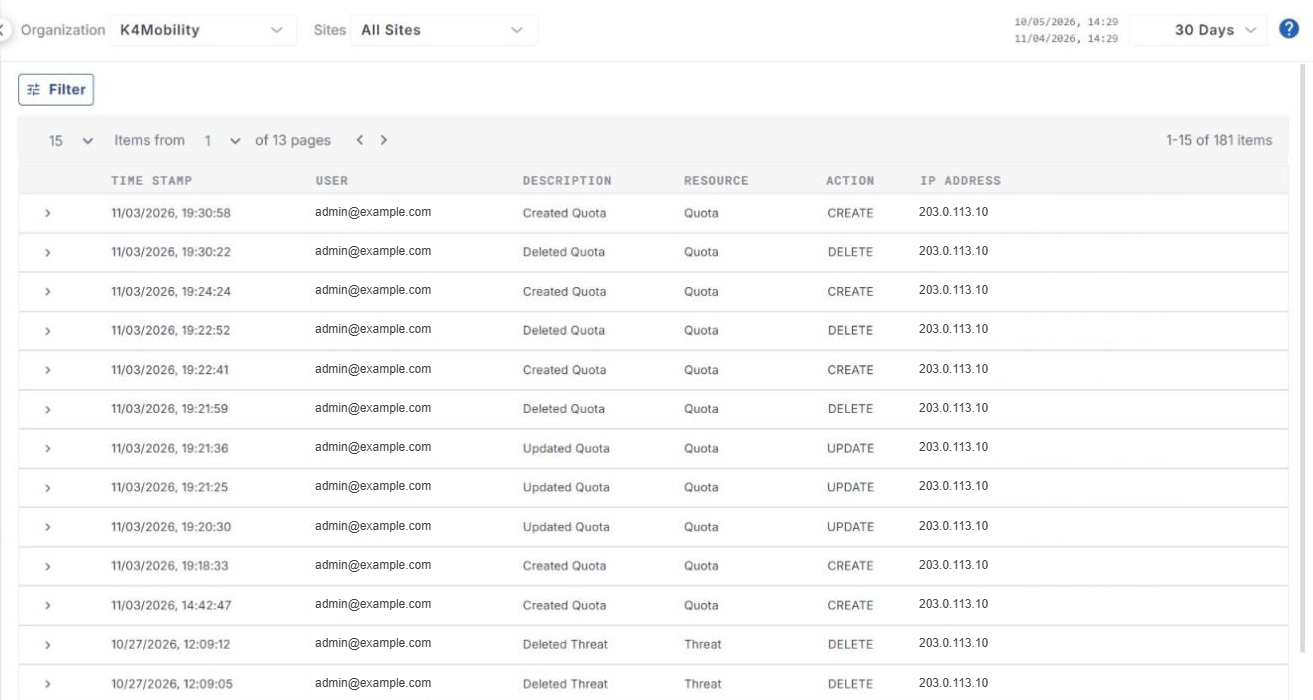
The Audit Logs table lists the activities of the users of the selected organization. It shows the following information:
-
Time Stamp – date and time of the activity.
-
User – email address of the user who performed the activity.
-
Description – short description of the activity.
-
Resource – resource on which the activity was performed (for example Quota or Threat).
-
Action – type of action (CREATE, UPDATE or DELETE).
-
IP Address – IP address of the user.
Audit log details
-
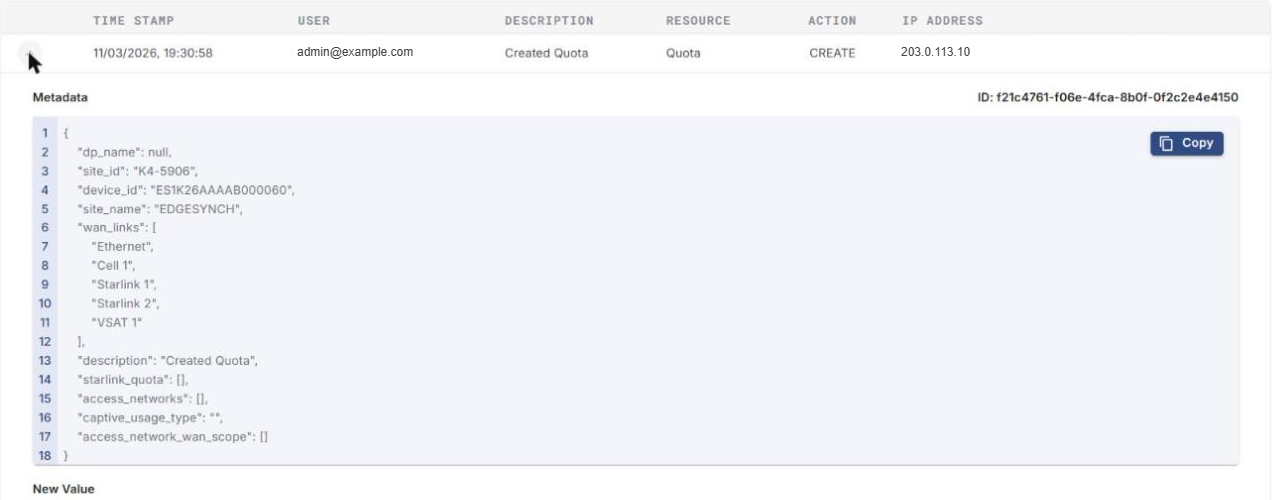
Click the arrow (>) at the start of an entry to expand it. The expanded view shows the ID of the entry and the following details:
-
Metadata
-
New Value
-
Old Value
-
-
Click Copy next to a section to copy its content.
Filter
-
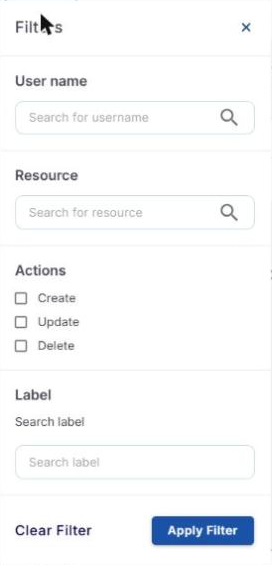
Click the Filter button to view the filtering options:
-
User name – search for a user to see the audit logs of that user.
-
Resource – search for a resource to see the audit logs of that resource.
-
Actions – select Create, Update and/or Delete.
-
Label – search for a label.
-
-
Click Apply Filter to apply the filter, or Clear Filter to remove it.