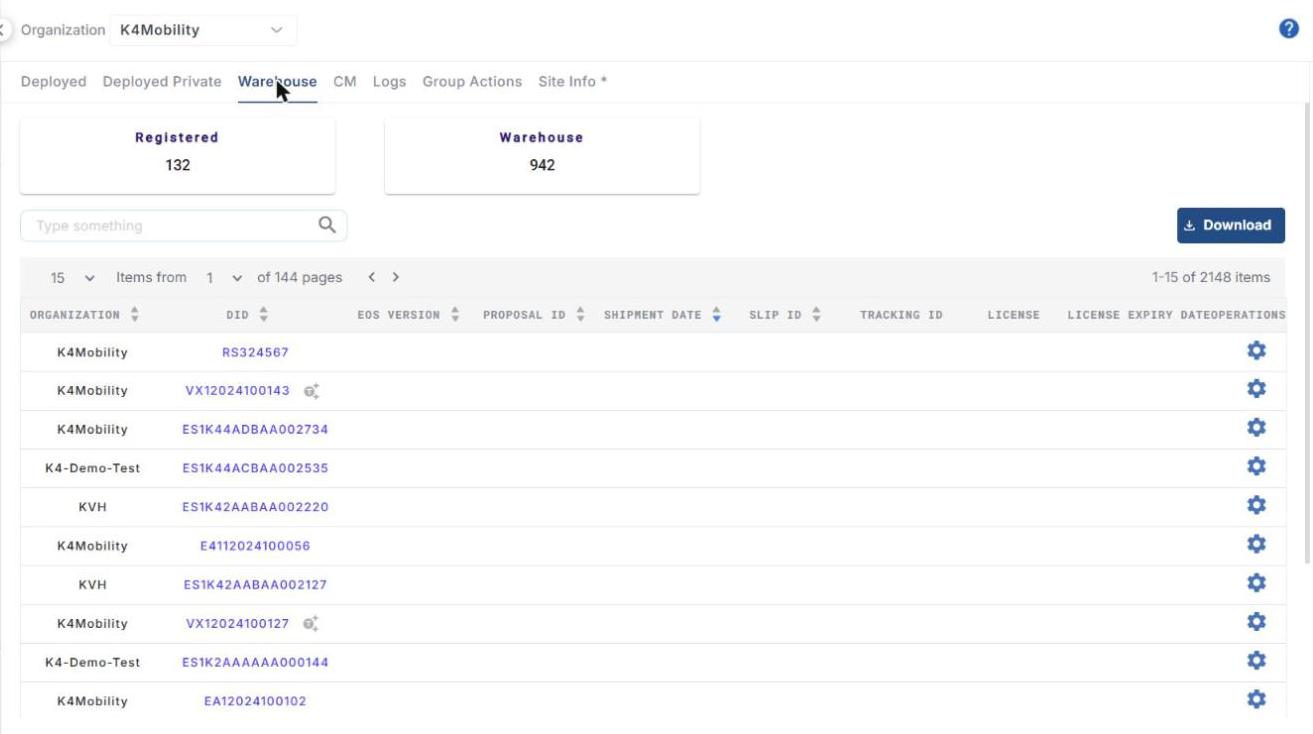
The Warehouse tab lists the devices that are not yet registered. These devices are yet to go live. Once a device is shipped, received and installed, you can assign it to a site and register it.
-
Click the Warehouse tab. The Registered and Warehouse counters at the top show the number of registered devices and the number of devices in the warehouse.
-
Use the search field to find a device, for example by Organization, DID or EOS Version.
-
Click Download to download the table data.
-
Use the page-size dropdown and the < > buttons above the table to move between pages.
-
The table shows the following information:
-
Organization – organization the device belongs to.
-
DID – device identification number. For some devices (for example VX devices), a Generate Token icon is shown next to the DID.
-
EOS Version – KonnectOS version running on the device.
-
Proposal ID
-
Shipment Date
-
Slip ID
-
Tracking ID
-
License – license of the device.
-
License Expiry Date
-
Operations – opens the Operations dialog of the device.
-
Operations
-
Click the
-
The left menu contains Register, Change Organization and System.
Register
-
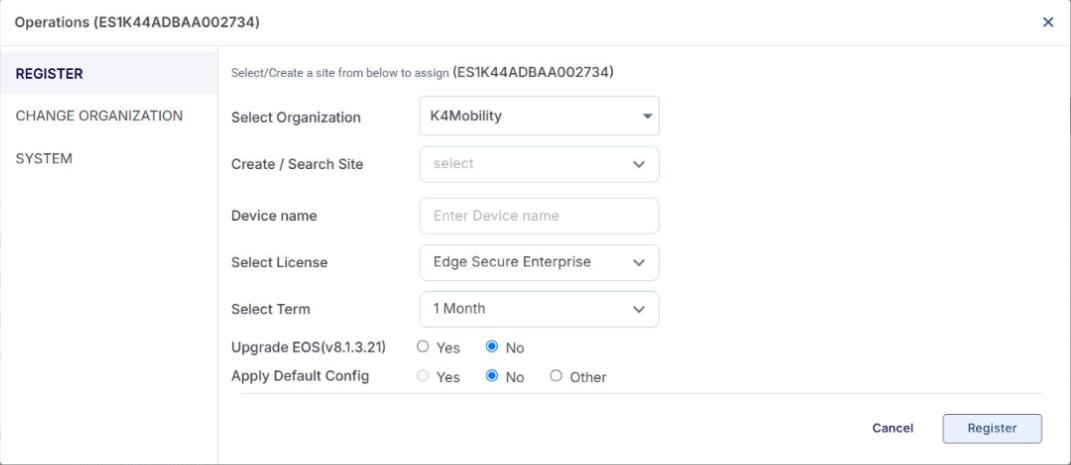
Click Register in the left menu to register the device to an organization and site.
-
In the Select Organization field, select the organization.
-
Select the site. A site is a vessel, store, car, truck or other location where the Edge system is installed and can be reliably identified. Several Edge devices can be in one site. In the Create / Search Site field, type the name of the site and select it from the list, or enter a new name and click Add to create a new site.
-
Enter a Device name.
-
In the Select License field, select the license.
-
For KonnectOS devices, the following fields are also shown:
-
Select Term – select the term of the license (for example 1 Month).
-
Upgrade EOS – select Yes to upgrade the device to the EOS version shown, or No (default) to keep the current version.
-
Apply Default Config – select Yes to apply the default configuration, No (default) to keep the current configuration, or Other to select one of your backup configurations in the Select Configuration field.
-
-
Click Register to register the device. The device moves from the Warehouse tab to the Deployed tab.
-
Click Cancel to cancel.
Change Organization
-
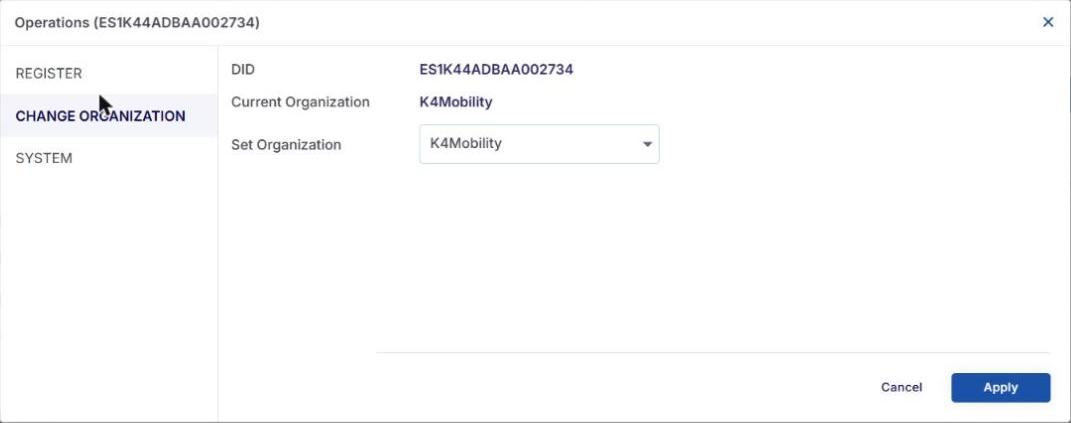
Click Change Organization in the left menu.
-
The DID and the Current Organization of the device are shown.
-
In the Set Organization field, select the new organization and click Apply, or click Cancel.
System
-
Click System in the left menu.
-
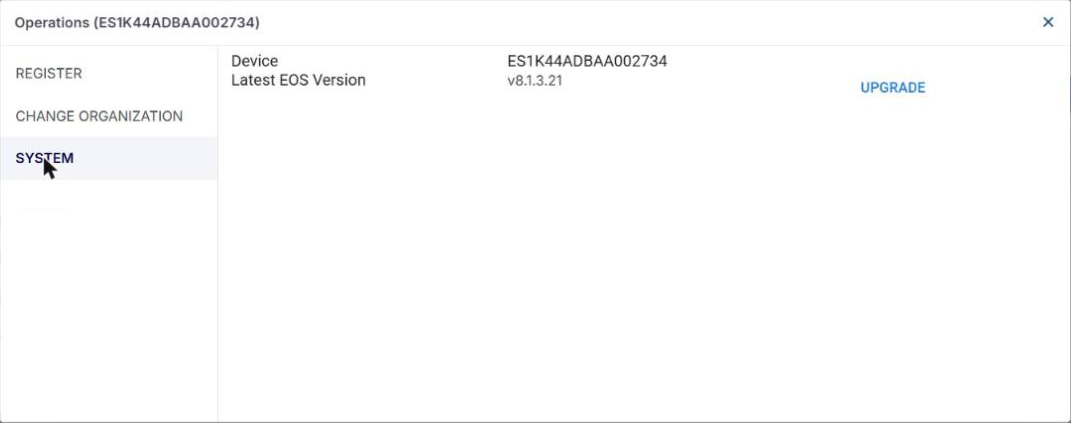
The Device field shows the device ID, and the Latest EOS Version field shows the latest KonnectOS version available for the device.
-
Click UPGRADE to upgrade the KonnectOS of the device.