Configuration Management (CM)
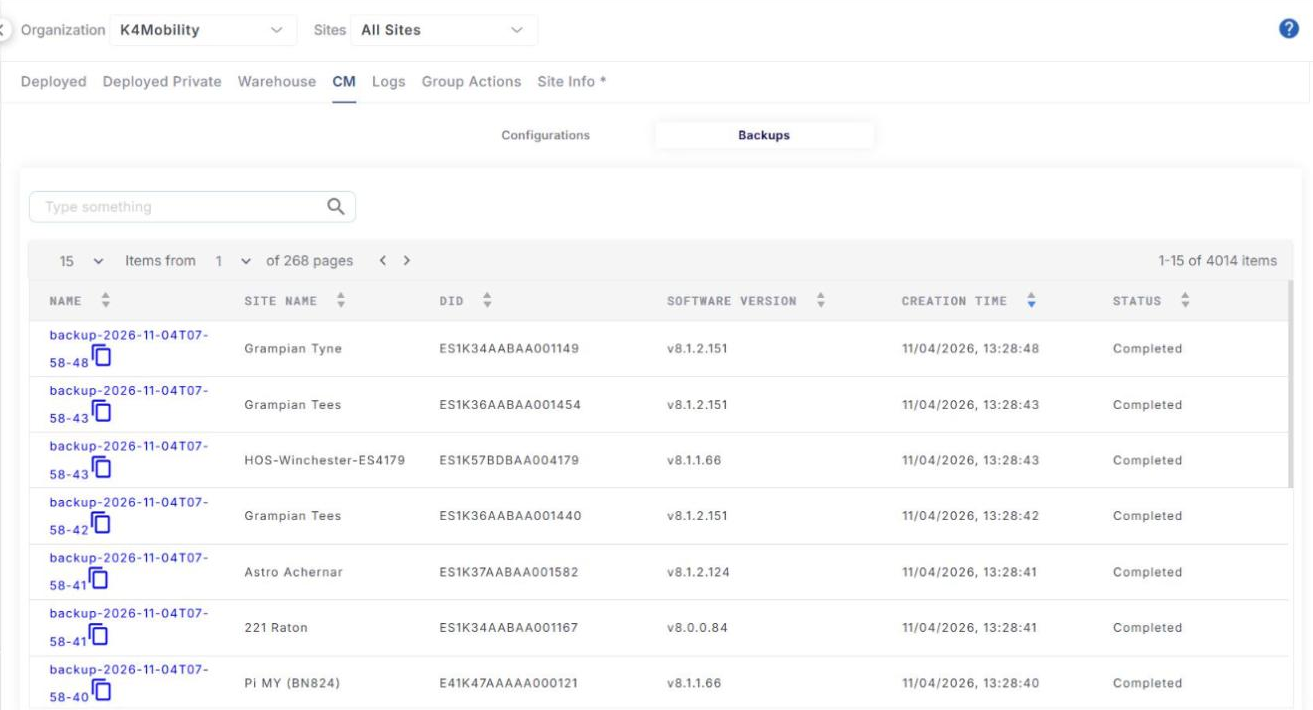
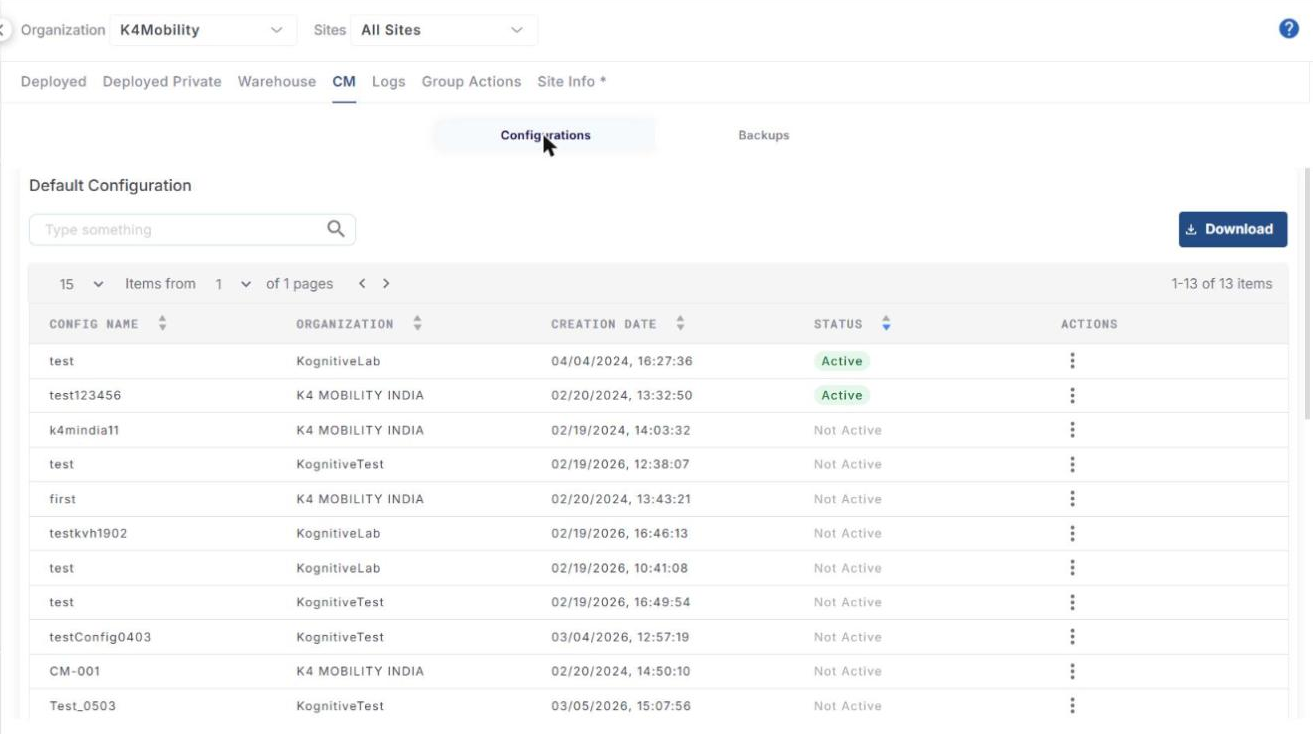
The CM tab has two sub-tabs: Configurations and Backups. The Configurations sub-tab is selected by default.
Configurations
The Configurations sub-tab contains two tables: Default Configuration and Backup Configuration.
Default Configuration
The Default Configuration table lists the default configurations of the selected organization. It shows the following information:
-
Config Name – name of the configuration.
-
Organization – name of the organization.
-
Creation Date – date and time of creation.
-
Status – Active or Not Active.
-
Actions – click the ⋮ icon and select Edit or Delete. See Inventory - Workflows for editing a default configuration.
-
Use the search field to find a configuration, and click Download to download the table.
Backup Configuration
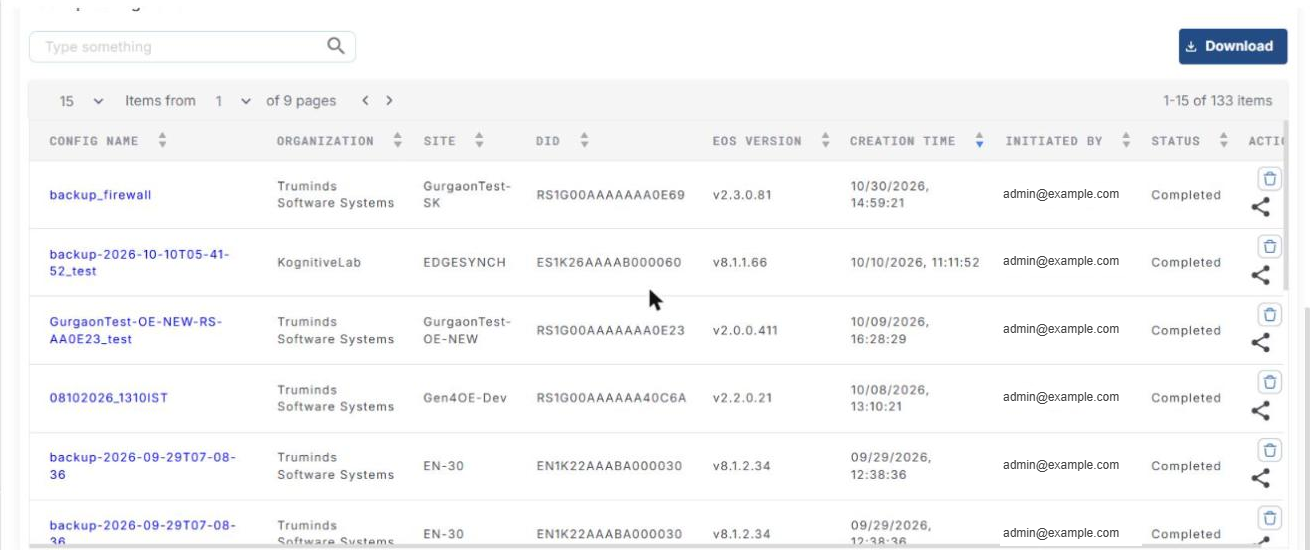
The Backup Configuration table lists the configurations saved manually from the Deployed tab and the ones copied from the automatic backups. These configurations can be applied to your devices. The table shows the following information:
-
Config Name – name of the configuration.
-
Organization – organization of the device.
-
Site – name of the site.
-
DID – device identification number.
-
EOS Version – KonnectOS version of the device when the configuration was saved.
-
Creation Time – date and time of creation.
-
Initiated By – user who saved the configuration.
-
Status – status of the configuration (for example Completed).
-
Actions:
-
Delete configuration – deletes the configuration.
-
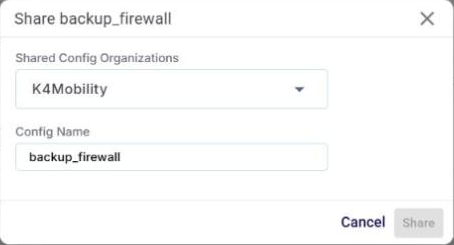
Share – shares the configuration with another organization. In the Share dialog, select the Shared Config Organizations, check the Config Name and click Share.
-
-
Use the search field to find a configuration, and click Download to download the table.
Backups
Click the Backups sub-tab. It lists all the automatic (daily) backups saved in the system. The table shows the following information:
-
Name – name of the backup.
-
Site Name – site the device belongs to.
-
DID – device identification number.
-
Software Version – KonnectOS version when the backup was taken.
-
Creation Time – date and time of the backup.
-
Status – status of the backup (for example Completed).
-
Use the search field to find a backup.
Automatic backups cannot be applied to devices directly. Click the Copy icon next to a backup name, enter a Manual config name and click the tick mark to copy it to the Backup Configuration table. It can then be applied to any device.