This page explains some of the most commonly used workflows in the Inventory screen.
How to Edit a Default Configuration
A default configuration can be applied to a new device when it is registered. You can set up a default configuration for each type of device (product). The default configurations of the organization are listed in the Default Configuration table on the CM tab.
-
Select Inventory from the left menu and click the CM tab.
-
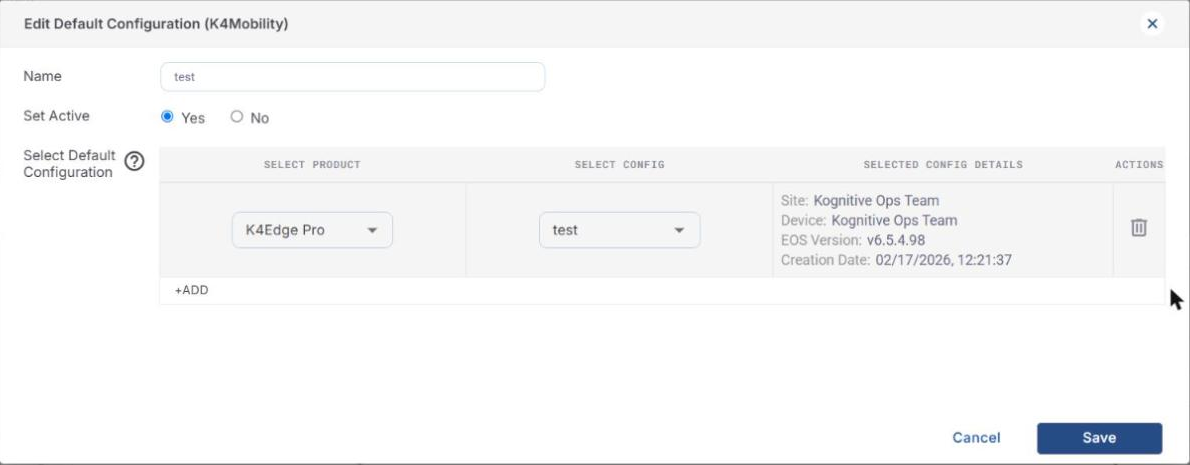
In the Default Configuration table, click the ⋮ icon of the required configuration and select Edit. The Edit Default Configuration dialog opens.
-
Enter the Name of the default configuration.
-
In the Set Active field, select Yes to apply this configuration by default to new devices added to the organization, or No.
-
Under Select Default Configuration:
-
In the Select Product column, select the type of device (for example K4Edge Pro).
-
In the Select Config column, select the configuration to use. The backup configurations saved for the organization are available in the list.
-
The Selected Config Details column shows the Site, Device, EOS Version and Creation Date of the selected configuration.
-
Click +ADD to add a default configuration for another device type, or click the delete icon in the Actions column to remove a row.
-
-
Click Save to save the changes, or Cancel to cancel.
How to Create a Backup Configuration
Backup configurations can be created manually or copied from the automatic backups.
How to Save a Manual Backup Configuration
A manual backup saves the current configuration of a device. It can be applied to other devices and used in default configurations.
-
Select Inventory from the left menu. The Deployed tab is selected by default.
-
Click the Configurations (gear) icon in the Operations column of the device.
-
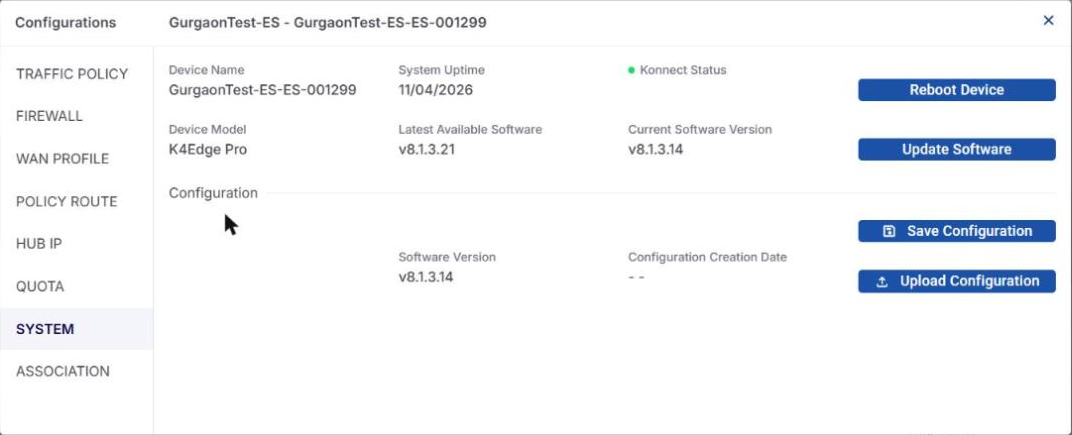
Select System in the left menu of the Configurations dialog.
-
Click Save Configuration.
-
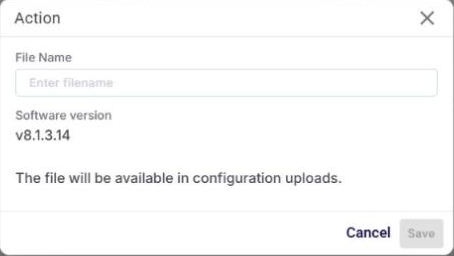
Enter the File Name of the configuration. The Software version of the device is shown.
-
Click Save to save the configuration, or Cancel to cancel. The saved configuration is listed in the Backup Configuration table on the CM tab.
How to Copy an Automatic Backup
The configuration backups taken daily are listed in the Backups sub-tab of the CM tab. They cannot be applied to devices directly; copy the required backup to the Backup Configuration table first.
-
Select Inventory from the left menu, click the CM tab and select the Backups sub-tab.
-
Click the Copy icon next to the name of the required backup.
-
Enter the Manual config name for the copy.
-
Click the tick mark to copy the backup, or the x to cancel. The copy is listed in the Backup Configuration table and can be applied to any device.

How to Apply a Configuration During Registration
You can apply a configuration to a new KonnectOS device when you register it from the Warehouse tab.
-
Select Inventory from the left menu and click the Warehouse tab.
-
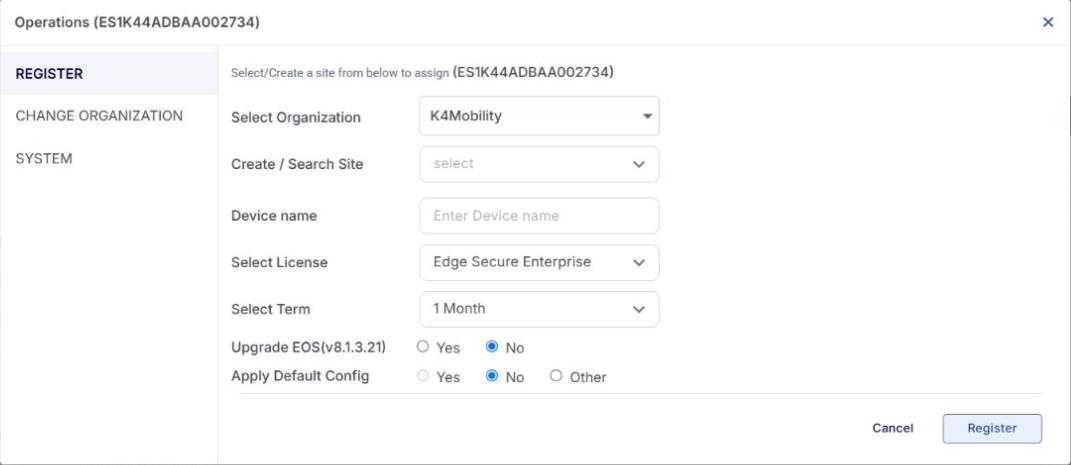
Click the Operations (gear) icon of the device. The Operations dialog opens with Register selected.
-
Select the Organization, and select or create the site in the Create / Search Site field.
-
Enter the Device name, and select the License and the Term.
-
In Upgrade EOS, select Yes to upgrade the device to the EOS version shown, or No.
-
In Apply Default Config:
-
Select Yes to apply the default configuration.
-
Select No to keep the current configuration of the device.
-
Select Other and choose one of your backup configurations in the Select Configuration field.
-
-
Click Register. The device moves from the Warehouse tab to the Deployed tab.
How To Check the Status of Configuration Restoration
Logs
-
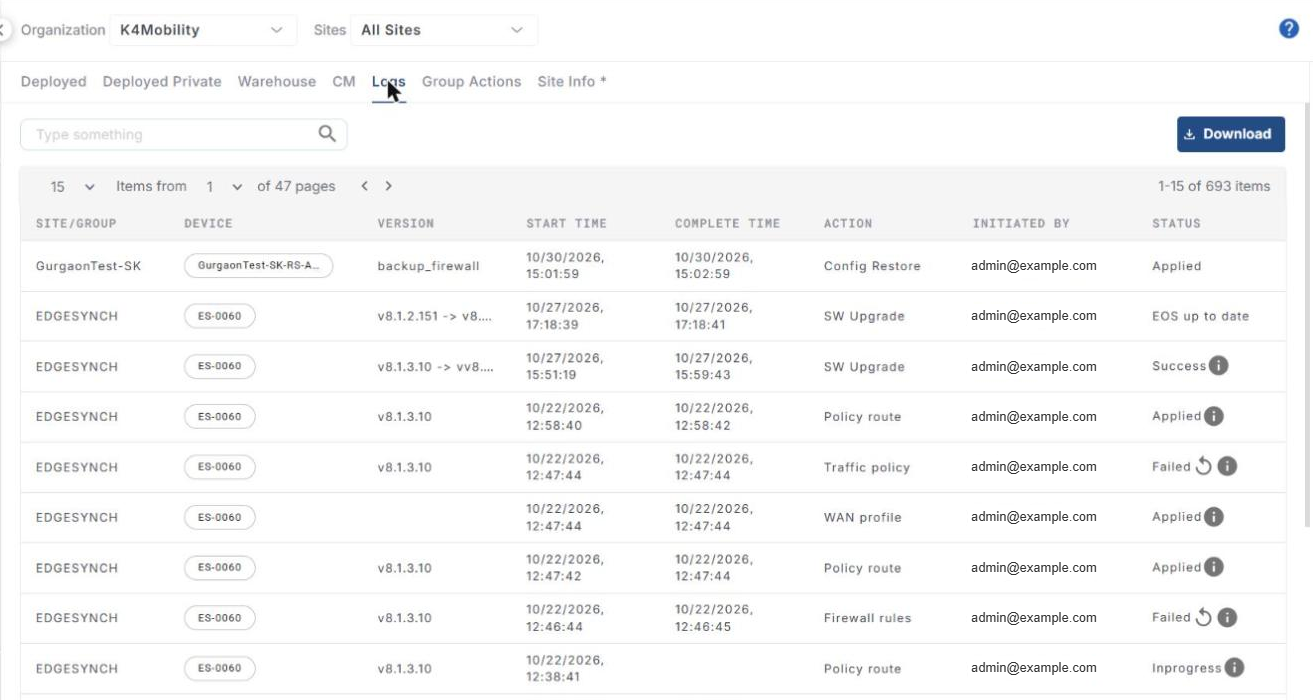
Select Inventory from the left menu and click the Logs tab. The tab shows the status of configuration restore, software upgrade and other operations.
-
The Status column shows, for example, Applied, Success, EOS up to date, Inprogress or Failed.
-
Click the info (i) icon to view more details. For a failed operation, click the Retry icon to retry it.
Events
-
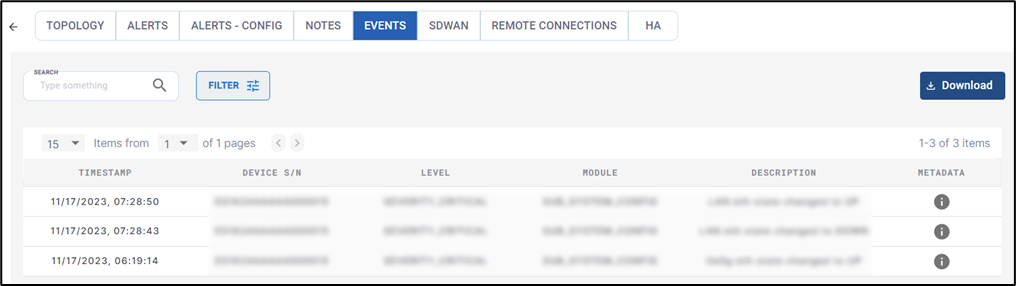
The configuration restoration status can also be viewed in the Events tab of the site’s Topology page.
-
Open the Topology page of the required site and select the Events tab. The status of the configuration restoration is shown in the events list.
-
Click the i icon to view more information about the operation, including the reason for a failure.