
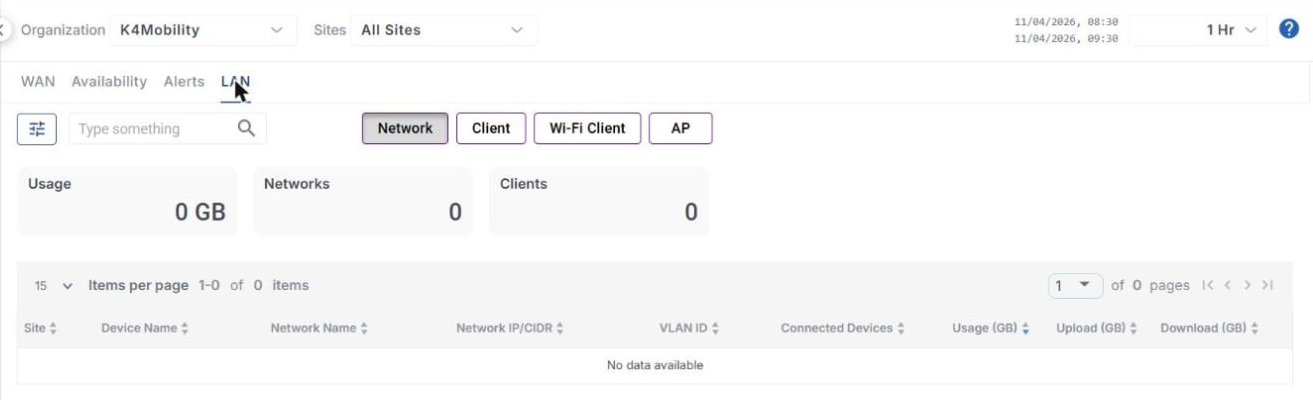
The LAN tab of the Trends screen shows the usage and details of the LAN networks, clients, Wi-Fi clients and access points (AP) of the selected Organization and Sites.
-
Select the LAN tab in the Trends screen.
Views
-
Click the Network, Client, Wi-Fi Client or AP button to select the view. The Network view is selected by default.
-
The cards at the top of the screen show the total Usage (GB), the number of Networks and the number of Clients for the selected filters.
Network
-
The table lists the LAN networks of the selected sites with the following information: Site, Device Name, Network Name, Network IP/CIDR, VLAN ID, Connected Devices, Usage (GB), Upload (GB) and Download (GB).
Client
-
The table lists the clients connected to the LAN networks with the following information: Site, Device, Interface, Network Name, Network IP/CIDR, VLAN ID, Device ID, Device IP, MAC Address, Hostname, Usage (GB), Upload (GB) and Download (GB).
Wi-Fi Client
-
The table lists the clients connected through Wi-Fi with the following information: Site, Device, Radio (GHz), Band-Channel, Channel Width, SSID, Client SINR (dBm), Client Rx/Tx Rate (Mbps), Client MAC, Client IP, Client Alias, Usage (GB), Upload (GB) and Download (GB).
AP
-
The table lists the Wi-Fi access points with the following information: Site, Device, Radio (GHz), Channel, Channel Width, TX Power (dBm), SSID, AP SINR (dBm), Clients, Usage (GB), Upload (GB) and Download (GB).
Search, Filter and Pagination
-
Enter the required text in the Type something search field to search the table.
-
Click the Filter icon and select the columns to be displayed in the table from the Columns dropdown. Click APPLY to apply the selection or RESET to return to the default columns.
-
Click a column header to sort the table based on that column.
-
Use the Items per page dropdown and the page navigation arrows to move between the pages.