
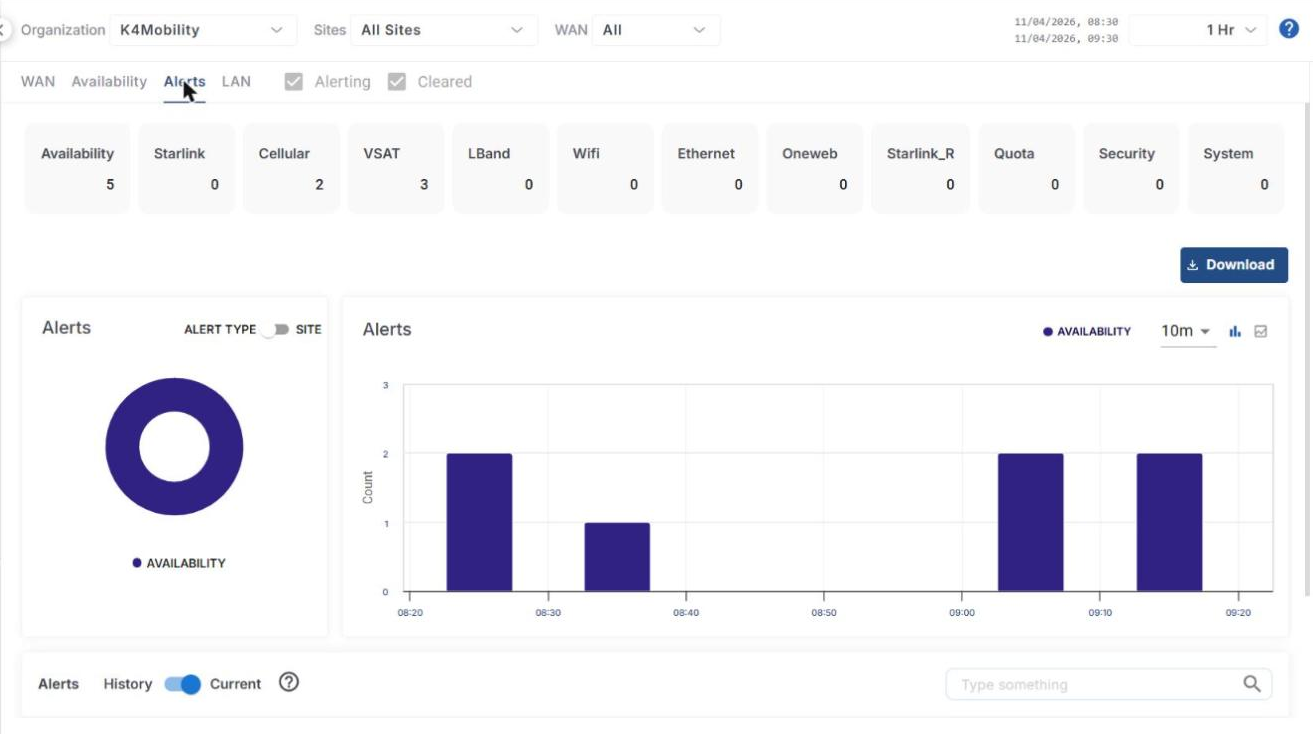
The Alerts tab shows a summary of the number of alerts received across the filter selection, and a historical chart of alerts by alert type.
Headers
The headers at the top of the screen show the following information:
-
Availability – The total number of availability alerts.
-
Starlink, Cellular, VSAT, LBand, Wifi, Ethernet, Oneweb and Starlink_R – The total number of alerts of the corresponding WAN source.
-
Quota – The total number of alerts about the Quota.
-
Security – The total number of alerts about the Security.
-
System – The total number of alerts about the System.
-
Select the Alerting and/or Cleared checkboxes next to the tabs to filter the alerts based on their status.
-
Click the Download button below the headers to download the alerts data in CSV format.
Alerts - Charts
-
The Alerts pie chart shows the number of alerts of the different Alert Types. Hovering the cursor on any item on the pie chart highlights the alert type and shows the number of alerts.
-
Click the ALERT TYPE / SITE toggle button to view the pie chart and bar chart based on the different sites of the organization.
-
The chart on the right displays the number of alerts at different time instances. The horizontal axis contains the time instances, and the vertical axis contains the number of alerts (Count).
-
Select the chart interval (for example, 10m) from the interval dropdown.
-
Click the Bar chart or Line chart icon to view the chart in bar or line format.
Alerts
-
The Alerts section shows a table that lists the alerts of the selected sites.
-
By default, the History / Current toggle is set to Current and the table shows only the alerts that are currently in Alerting status. The time period is not applicable for the current alerts.
-
Switch the toggle to History to view the history of the alerts for the selected period.
-
The table shows the following information:
-
Site
-
Device Name
-
Alert Name
-
Interface Name
-
WAN Type
-
Reported On – Date and Time of the alert
-
Status – Alerting / Cleared
-
Details – Device ID and Type
-
-
Enter the required text in the Type something search field to search the table.
-
Use the Items from dropdown to change the number of alerts displayed in one page, and use the < > buttons or the page dropdown to move between the pages.