
-
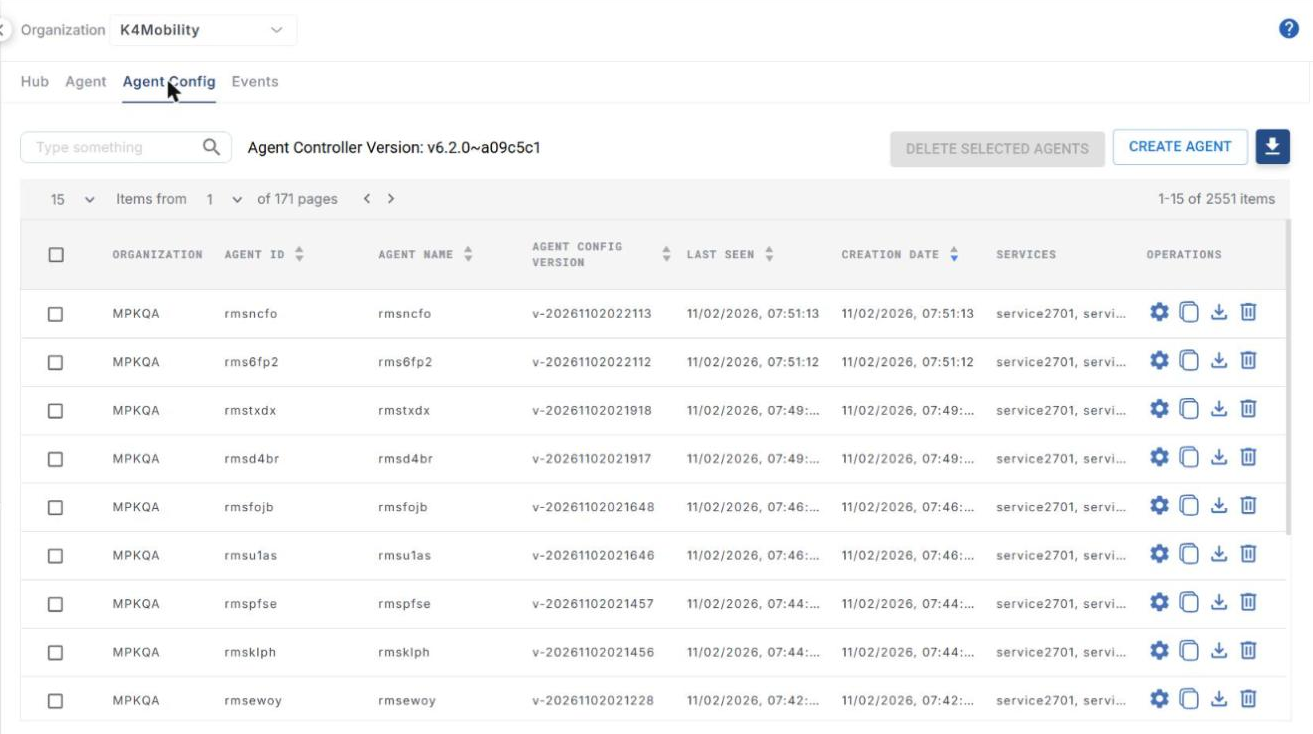
Click the Agent Config tab. This tab lists the agents of the selected organization and lets you create agents and manage their configuration.
Agent list
-
The Agent Controller Version is shown next to the search field.
-
Use the search field to find an agent.
-
The table shows the following information:
-
Organization – organization the agent belongs to.
-
Agent ID and Agent Name
-
Agent Config Version – version of the configuration applied to the agent.
-
Last Seen – date and time when the agent was last seen.
-
Creation Date – date and time when the agent was created.
-
Services – services associated with the agent.
-
Operations:
-
Edit (gear icon) – opens the agent’s configuration (see Agent Config Summary below).
-
Copy
-
Download
-
Delete – deletes the agent.
-
-
-
To delete several agents at once, select their checkboxes and click DELETE SELECTED AGENTS.
-
A Download icon is also available next to CREATE AGENT.
Create Agent
-
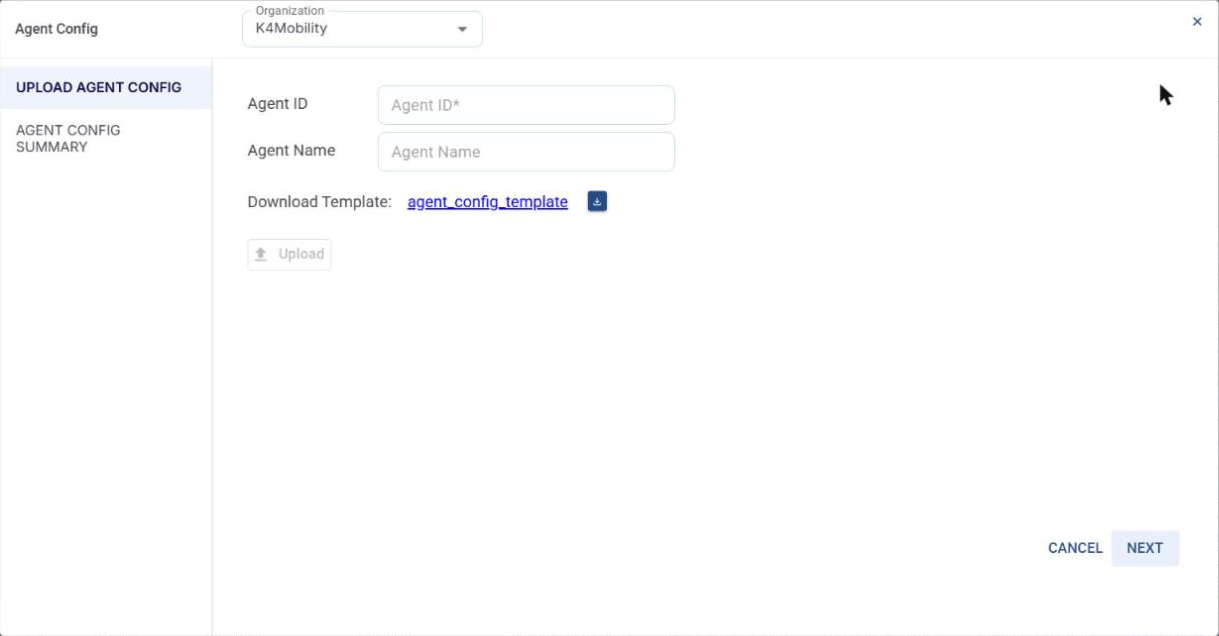
Click CREATE AGENT. The Agent Config dialog opens with the Upload Agent Config step selected.
-
Select the Organization at the top of the dialog.
-
Enter the Agent ID (mandatory) and the Agent Name.
-
Click agent_config_template (or the download icon next to it) to download the configuration template, and fill in the agent configuration.
-
Click Upload and select the completed configuration file.
-
Click NEXT to review the configuration in the Agent Config Summary step, or CANCEL to close the dialog.
Agent Config Summary
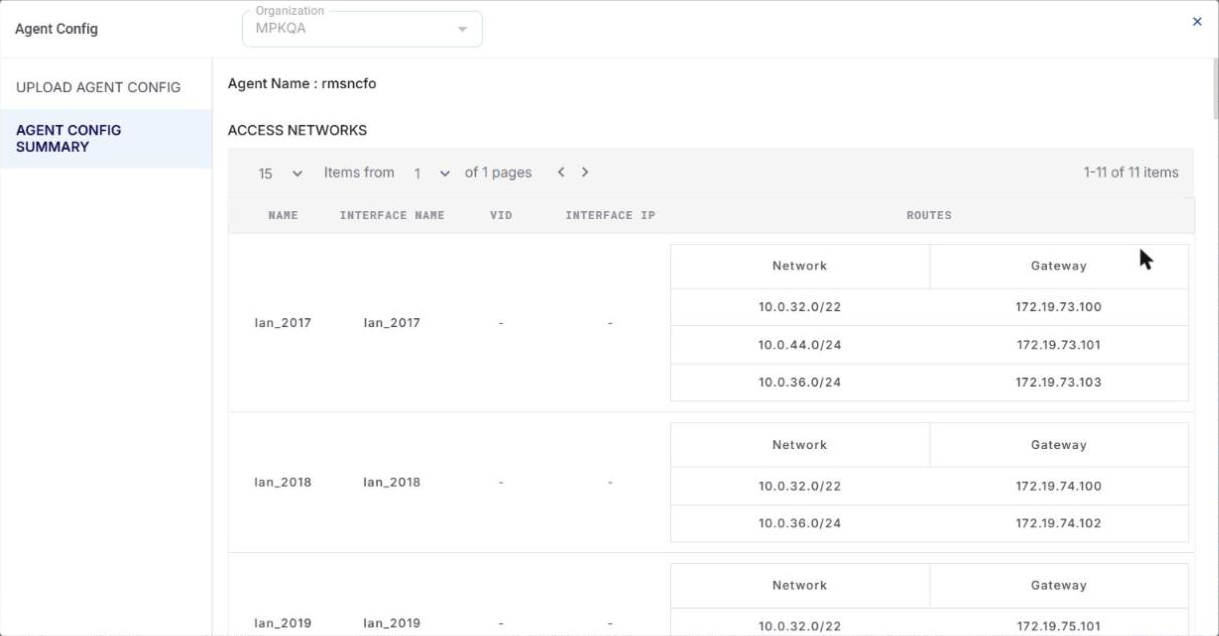
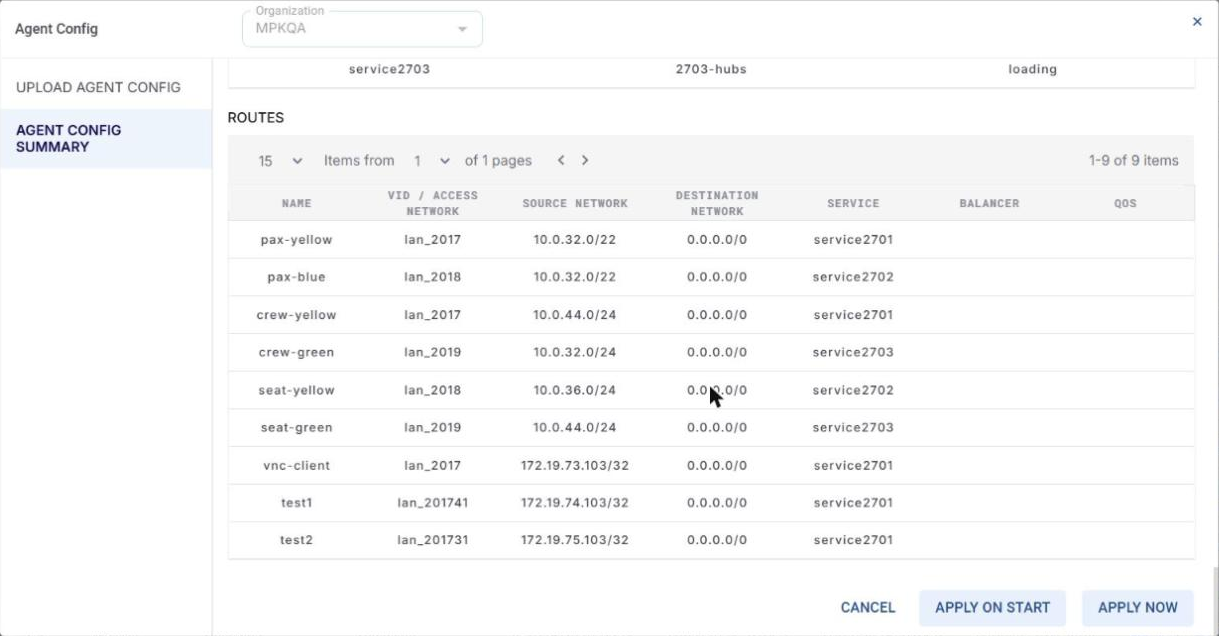
The Agent Config Summary shows the configuration of the agent (opened with NEXT when creating an agent, or with the Edit icon of an existing agent). It shows the Agent Name and the following sections:
-
Access Networks – Name, Interface Name, VID, Interface IP and Routes (Network and Gateway).
-
WAN Interfaces
-
Balancers
-
Hub Groups
-
Hubs
-
Hub Selection
-
Hub WAN Selection
-
Services
-
Routes – Name, VID / Access Network, Source Network, Destination Network, Service, Balancer and QoS.
-
Click APPLY NOW to apply the configuration to the agent immediately.
-
Click APPLY ON START to apply the configuration when the agent starts.
-
Click CANCEL to close the dialog without applying the configuration.