
Overview
MultiPath Konnect (MPK) Tunnel Support enables organizations to establish secure Hub-based tunnels between Edge devices and a centralized Konnect Hub. The feature provides high-performance and resilient WAN connectivity by allowing traffic to be routed through the Hub while leveraging multiple WAN interfaces.
MPK Tunnel Support extends the existing Hub functionality by introducing:
-
Configurable MultiPath Konnect operating modes
-
Advanced transport optimization features
-
Intelligent WAN utilization
-
Enhanced dashboard monitoring
-
Hub service management
Depending on the deployment requirements, administrators can configure the Hub to operate in PEP or Tunnel mode and apply advanced transport settings such as TCP Transport, Forward Error Correction (FEC), Packet Balancing, and Packet Duplication.
How MPK Tunnel Support Works
MPK Tunnel Support establishes a secure tunnel between an Edge device and a Konnect Hub server.
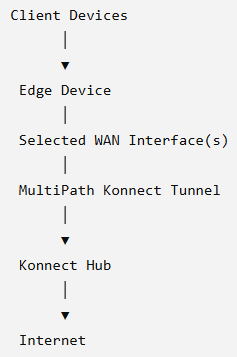
Unlike traditional WAN routing, traffic is forwarded through the Hub, allowing centralized internet breakout, improved resiliency, and WAN optimization.
Deployment Workflow
A typical MPK deployment consists of the following steps:
-
Configure the Hub service.
-
Select the required MultiPath Konnect mode.
-
Configure Hub listener settings.
-
Configure Edge client settings.
-
Configure WAN priorities.
-
Configure advanced MPK transport options.
-
Verify Hub status from the Dashboard.
MultiPath Konnect Operating Modes
MPK supports two operating modes.
PEP (Performance Enhancing Proxy)
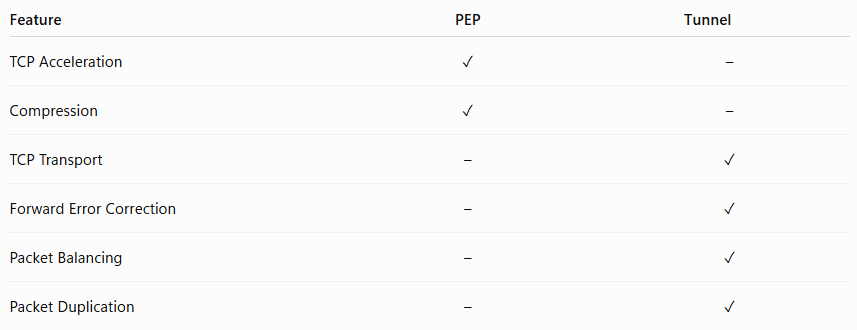
PEP improves performance over high-latency WAN links by using TCP acceleration and compression.
Recommended for:
-
VSAT
-
Satellite links
-
High-latency networks
Approximate throughput:
-
300 Mbps
Tunnel
Tunnel mode enables the complete MultiPath Konnect feature set.
Note: Tunnel mode and its advanced MultiPath Konnect (MPK) capabilities are introduced in Konnect Release 8.1.2.
Recommended for deployments that require :
-
High throughput
-
WAN resiliency
-
Advanced traffic optimization across one or more WAN links.
Approximate throughput:
-
Supports multi-Gbps throughput (CPU dependent).
Tunnel mode supports multi-Gbps throughput depending on available hardware resources.
Configuration Workflow
The MPK feature is configured across multiple pages.
|
Configuration |
Page |
|---|---|
|
Hub configuration |
Hub Settings |
|
Edge configuration |
Client Settings |
|
WAN transport optimization |
WAN Profiles |
|
Monitoring |
Dashboard |
Hub Settings
Overview
The Hub Settings page is used to configure the Konnect Hub server.
Administrators can:
-
Enable or disable the Hub service
-
Select the MPK operating mode
-
Configure Hub listener settings
-
Configure WAN interfaces
-
Configure optional authentication
-
View NAT mappings
Steps
-
Navigate to: Hub → Hub Settings.
-
Enable Konnect Hub Services - Enable the Konnective Hub Services option to activate the Hub server. When disabled, the device does not accept MPK client connections.
-20260716-082954%20(1)%20(1)-20260804-174758.png?cb=7d63cc55074881599ba72568a704fcb5)
-
Select the MPK Mode - The MultiPath Konnect Mode determines how the Hub processes traffic. Available modes:
-
PEP
-
Tunnel
-
-
Selecting the Information icon displays a description of both modes.
-
Change the MPK Mode - Changing the MPK mode requires a Hub reboot.
-
When you save the new mode:
-
A confirmation dialog is displayed.
-
Selecting Save & Reboot saves the configuration.
-
The Hub restarts automatically.
-
Existing administrator sessions end.
-
You are redirected to the login page after reboot.
-
-
Note: Existing Hub traffic is interrupted while the Hub restarts.
-
Configure Hub Service Settings:
-
Select WAN Interface(s): Select one or more WAN interfaces that accept MPK client connections.
-
Listen Port: Specify the TCP/UDP port used by the Hub server.
-
Password: Optionally configure a password for client authentication.
-
-
NAT Table - Displays outbound NAT rules. Information includes:
-
Edge Device
-
WAN Interface
-
Access Network
-
NAT Type
-
NAT Destination
-
-
Inbound NAT / Route Table - Displays inbound DNAT mappings configured for Hub clients.
Client Settings
Overview
The Client Settings page configures the Edge device that connects to a Hub.
Like Hub Settings, Client Settings provides the MultiPath Konnect Mode selector.
Unlike the Hub, changing the client mode:
-
interrupts existing traffic sessions,
-
applies immediately,
-
does not require a Hub reboot.
-20260804-174908.png?cb=bf5e816daa1eb088d94cc3f6bf4a0e34)
WAN Profiles – MPK Advanced Settings
Overview
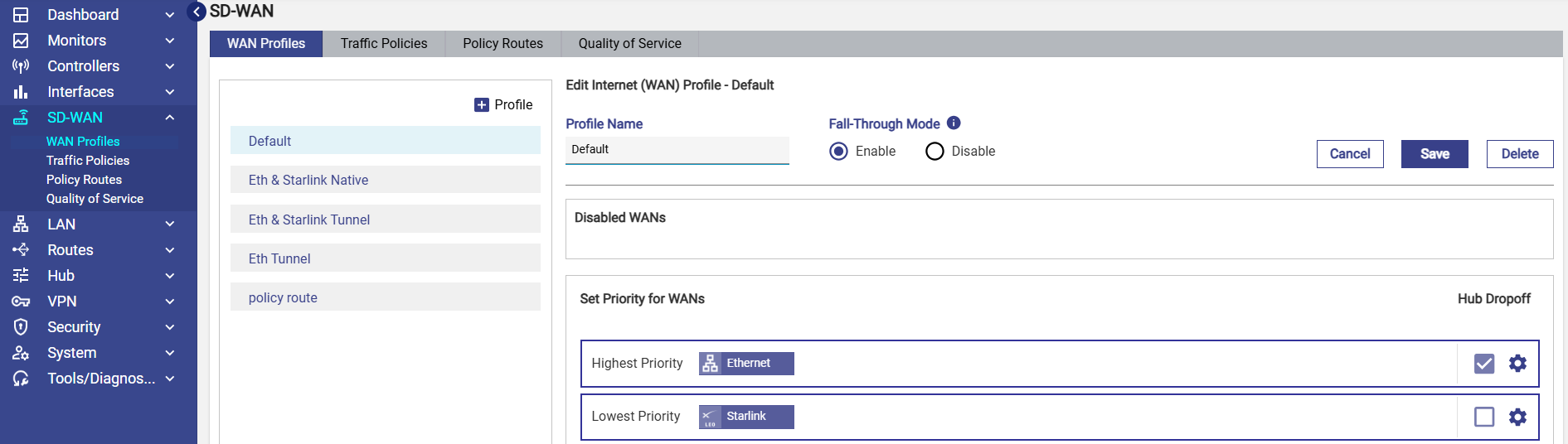
When a WAN Profile operates in Tunnel mode, the Advanced Settings dialog includes a MultiPath Konnect tab. This tab provides advanced transport configuration options for each WAN priority.
To access the settings:
-
Navigate to SD-WAN > WAN Profiles.
-
Select a WAN profile configured for Tunnel mode.
-
Click the gear icon for the required WAN priority.
-
Open the MultiPath Konnect tab.
The dialog also contains the existing Link Bonding and Internet Priority tabs.
-20260804-175151.png?cb=d136a115a4a9056ef68c597f9e319b6a)
Advanced Configuration
TCP Transport
-
Routes MPK tunnel traffic over TCP instead of UDP.
-
Use TCP Transport when UDP traffic is blocked or restricted.
-
Expected outcome:
-
Establishes MPK tunnel connectivity over TCP.
-
Enables MPK communication in environments where UDP transport is unavailable.
-
Maintains tunnel connectivity through restrictive firewalls or network policies.
-
-
Do not use when:
-
UDP traffic is permitted. UDP provides lower protocol overhead and is generally recommended for optimal MPK tunnel performance.
-
Limitations
TCP Transport cannot be enabled if any of the following features are already selected:
-
Forward Error Correction (FEC)
-
Packet Balancing
-
Packet Duplication
Selecting TCP Transport automatically disables these features.
Forward Error Correction (FEC)
FEC improves communication across unreliable WAN links by transmitting redundant packets, allowing lost packets to be reconstructed without retransmission.
Use FEC when the WAN experiences intermittent packet loss, such as cellular, satellite, or other unstable network connections.
-
Expected outcome
-
Improves communication over lossy WAN links.
-
Reduces the impact of packet loss.
-
Minimizes retransmissions, resulting in more consistent application performance.
-
-
Do not use when:
-
WAN links are stable and experience minimal or no packet loss, as the additional redundancy increases bandwidth overhead without providing significant benefit.
-
Available levels:
-
Auto
-
High
-
Medium
-
Low
When enabled, the selected FEC level is displayed as a badge beside the WAN priority.
Packet Balancing
Packet Balancing distributes traffic across multiple WAN interfaces assigned to the same WAN priority.
Use Packet Balancing when multiple active WAN links are available and the goal is to maximize aggregate bandwidth and throughput. Use when the WAN links have similar bandwidth, RTT, and packet-loss characteristics.
Expected outcome
-
Increases aggregate bandwidth by utilizing multiple WAN links.
-
Improves throughput for traffic traversing the MPK tunnel.
-
Distributes traffic more evenly across available WAN interfaces.
Do not use when:
-
WAN links have significantly different RTT or throughput.
-
WAN links experience frequent packet loss or instability.
-
One WAN link is substantially slower than the others.
Benefits include:
-
Higher aggregate bandwidth
-
Improved throughput
-
Better utilization of available WAN links
Requirement: The selected WAN priority must contain more than one WAN interface.
Note: For optimal performance, the WAN links used for Packet Balancing or Packet Duplication should have similar round-trip time (RTT) and throughput. If the RTT or throughput of the WAN links differs by more than 20%, the overall performance and latency of the bonded WAN set will be influenced by the lower-performing link, reducing the overall benefits of the feature.
Packet Duplication
Packet Duplication sends identical packets over every WAN interface assigned to the same WAN priority.
Use Packet Duplication when maintaining reliable communication is more important than maximizing bandwidth, particularly over WAN links that experience packet loss or intermittent degradation.
Expected outcome
-
Improves communication reliability by transmitting duplicate packets across multiple WAN links.
-
Reduces the impact of packet loss and WAN degradation.
-
Provides lower aggregate throughput than Packet Balancing because identical packets are transmitted over multiple WAN links instead of distributing traffic across them.
Do not use when
-
Maximizing bandwidth efficiency is the primary objective, as duplicate packets increase bandwidth consumption.
-
Only a single WAN interface is available.
-
WAN links have significantly different RTT or throughput, as this can reduce the effectiveness of the duplicated traffic.
Benefits include:
-
Increased reliability
-
Reduced packet loss
-
Improved resiliency during WAN degradation
Requirement: The selected WAN priority must contain more than one WAN interface.
Note: For optimal performance, the WAN links used for Packet Balancing or Packet Duplication should have similar round-trip time (RTT) and throughput. If the RTT or throughput of the WAN links differs by more than 20%, the overall performance and latency of the bonded WAN set will be influenced by the lower-performing link, reducing the overall benefits of the feature.
Dashboard Enhancements
Hub Status
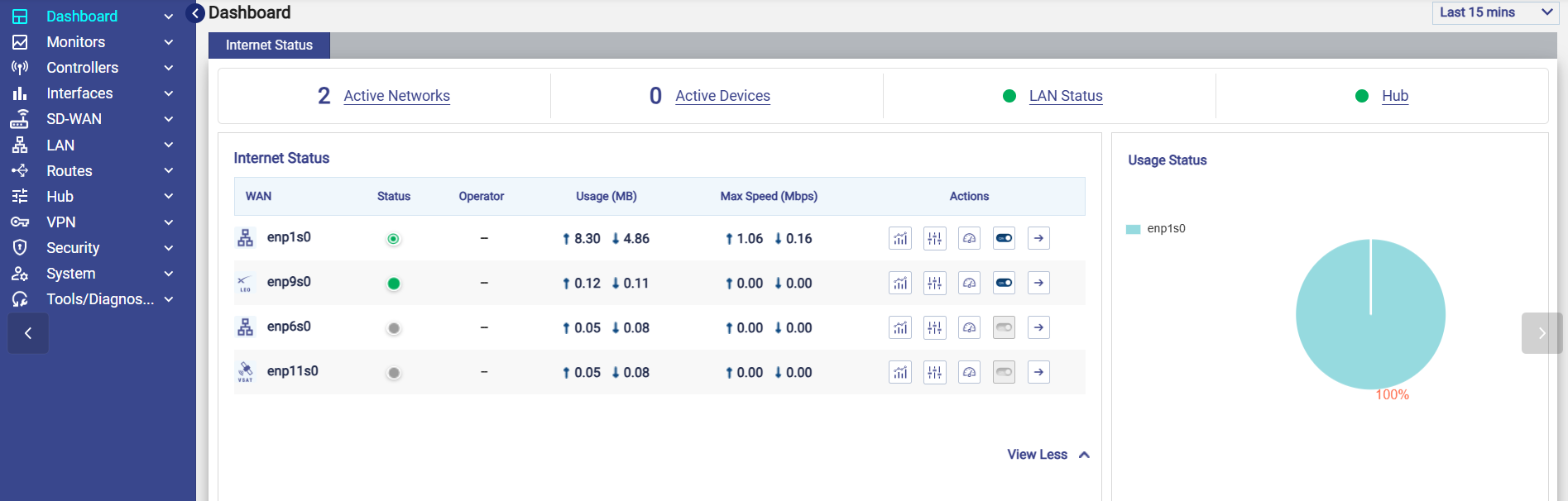
When the device is licensed as a Hub, the Dashboard displays a Hub status indicator.
|
Status |
Indicator |
|---|---|
|
Hub Services Enabled |
Green |
|
Hub Services Disabled |
Red |
Hub Status Navigation
Selecting the Hub status opens different pages depending on the current Hub state.
|
Hub Status |
Opens |
|---|---|
|
Green |
Konnect Hub Service Status page |
|
Red |
Hub Settings page |
Konnect Hub Service Status
When Hub Services are enabled, the Konnect Hub Service Status page provides centralized monitoring of Hub activity.
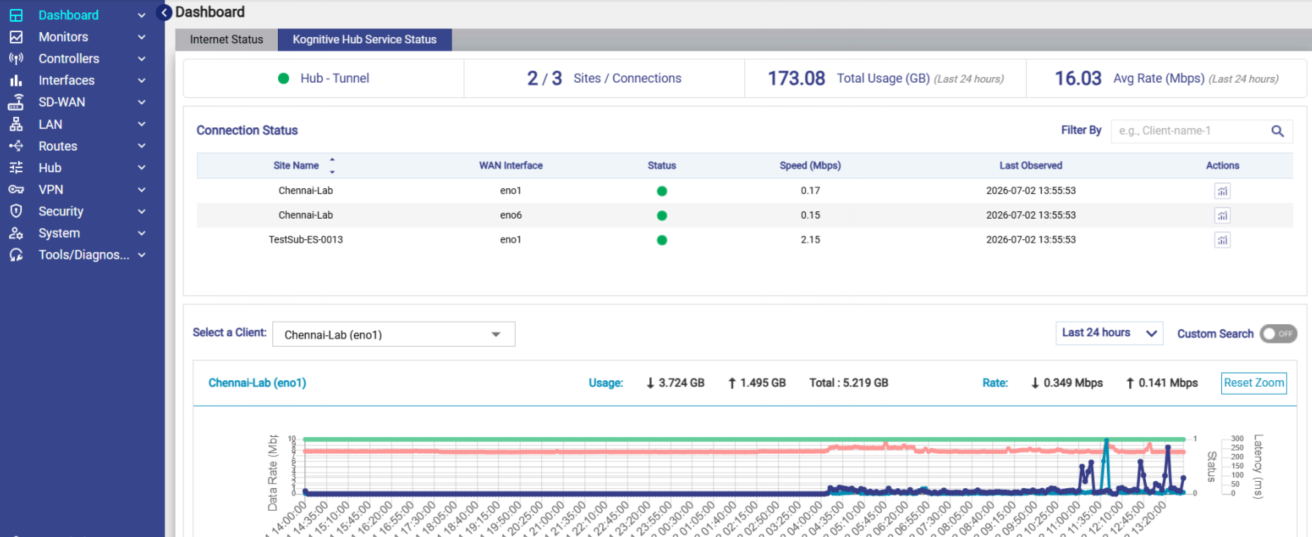
Summary Information
The page displays:
-
Hub Status
-
Current MPK Mode
-
Number of Connected Sites
-
Number of Active Connections
Aggregate Statistics (Last 24 Hours)
The page also displays:
-
Total Usage across all connected clients
-
Average Rate (Mbps)
Dashboard Behavior for Edge (Non-Hub) Licenses
For devices using an Edge license, the Dashboard still displays the Hub status indicator.
Hovering over the indicator displays:
-
Selected MPK Mode
-
Selected Hub Alias
-
Hub IP Address and Port
-
Installed License Type
Selecting the Hub indicator redirects administrators to the Client Settings page, where the client's MPK configuration can be viewed or modified.
Best Practices
-
Use PEP mode for VSAT or other high-latency deployments when TCP acceleration and compression are required, and the upstream VSAT modem or network device does not already provide PEP functionality.
-
Use Tunnel mode for deployments that require high throughput, even when the advanced MPK features (TCP Transport, FEC, Packet Balancing, and Packet Duplication) are not required.
-
Enable Fall-Through Mode if uninterrupted connectivity is preferred when the MPK tunnel becomes unavailable.
-
Configure Packet Balancing or Packet Duplication only when multiple WAN interfaces are assigned to the same WAN priority.
-
Configure FEC for WAN links that experience intermittent packet loss.
For detailed information about each configuration and monitoring page, refer to the following topics::