
Keywords: KonnectOS, Manage Secure DNS, Content Filtering, Google Chrome, Mozilla Firefox
Overview
This guide explains how to manage secure DNS settings in web browsers to ensure your network’s content filtering and security policies function correctly when browsers use encrypted DNS protocols such as DNS over HTTPS (DoH) or DNS over TLS (DoT). It covers checking if secure DNS is enabled in major browsers, identifying secure DNS server IPs, and configuring traffic or firewall rules on KonnectOS to block or control secure DNS traffic so that content filtering remains effective. By following this guide, you will be able to control browser DNS behavior, maintain filtering enforcement, and enhance network security.
1 Optimizing Content Filtering: How To Manage Secure DNS in Browsers
In today's digital landscape, effective content filtering is crucial for maintaining security and compliance within networks. However, secure DNS protocols like DNS over HTTPS (DoH) or DNS over TLS (DoT) can pose challenges to content filtering solutions. This comprehensive guide will walk you through the steps to bypass or block secure DNS settings in popular web browsers, ensuring seamless integration with content filtering.
Step 1: Checking Secure DNS Settings in Web Browsers
Google Chrome
-
Access Chrome settings via the three-dot menu.
-
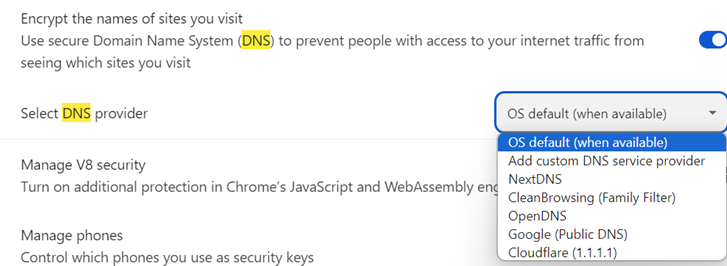
Navigate to "Settings" > "Privacy and security" > "Security".
-
Look for the "Secure DNS" option. If enabled, secure DNS protocols are active. You can also choose your DNS provider here.
Mozilla Firefox
-
Access Chrome settings via the three-dot menu.
-
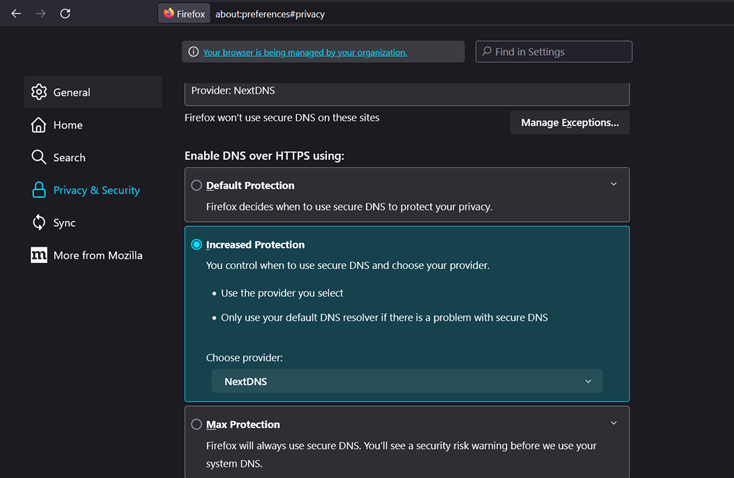
Navigate to "Privacy & Security" > "Network Settings".
-
Scroll down to find the "DNS over HTTPS" option. If enabled, secure DNS over HTTPS is active.
Step 2: Finding S-DNS Server IPs
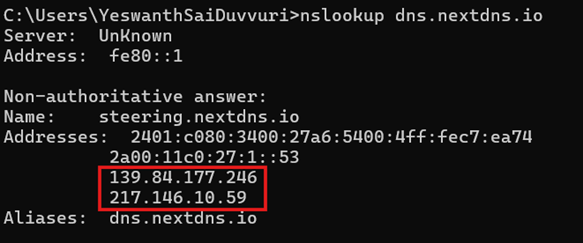
Identify the IP addresses associated with the chosen secure DNS provider.
Example: For NextDNS, use the command “nslookup dns.nextdns.io” in Command Prompt to retrieve the IP addresses.
Step 3: Blocking Secure DNS IPs on Edge Device
-
Log in to the Edge Device.
-
Access the Configuration Wizard by clicking on the menu icon.
-
Navigate to the "Traffic Policies" tab.
-
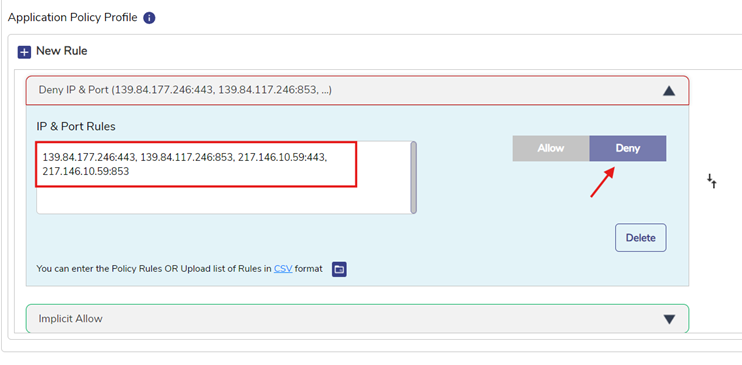
Select the relevant network policy and create a new rule.
-
Configure the rule to deny traffic from secure DNS IPs (e.g., NextDNS IPs) on ports 443 and 853.
Note: This approach is crucial when content filtering fails to block content due to client browsers utilizing secure DNS services.
Conclusion
Enhancing Content Filtering with Integration:
By following these steps, you can effectively bypass or block secure DNS settings in web browsers, ensuring seamless integration with the content filtering solution. Whether you're redirecting DNS queries to Google DNS or routing them through the content filter DNS server, this approach enhances your ability to manage and monitor internet access while maintaining security and compliance within your network environment.