
The Client Settings page is used on an KonnectOS device that connects to a Konnect Hub as a client. It lets the administrator select the MultiPath Konnect (MPK) mode and the Hub Internet Dropoff configuration (the Hub server that the device connects to), and add, edit or delete Hub Internet Dropoff configurations.
To access the page, select Hub > Client Settings from the side menu bar.
Note: On an KonnectOS device acting as an Edge (client), the Hub menu shows only the Client Settings tab. The Hub Settings tab is displayed only on a device acting as a Hub. For details, see Hub Settings.
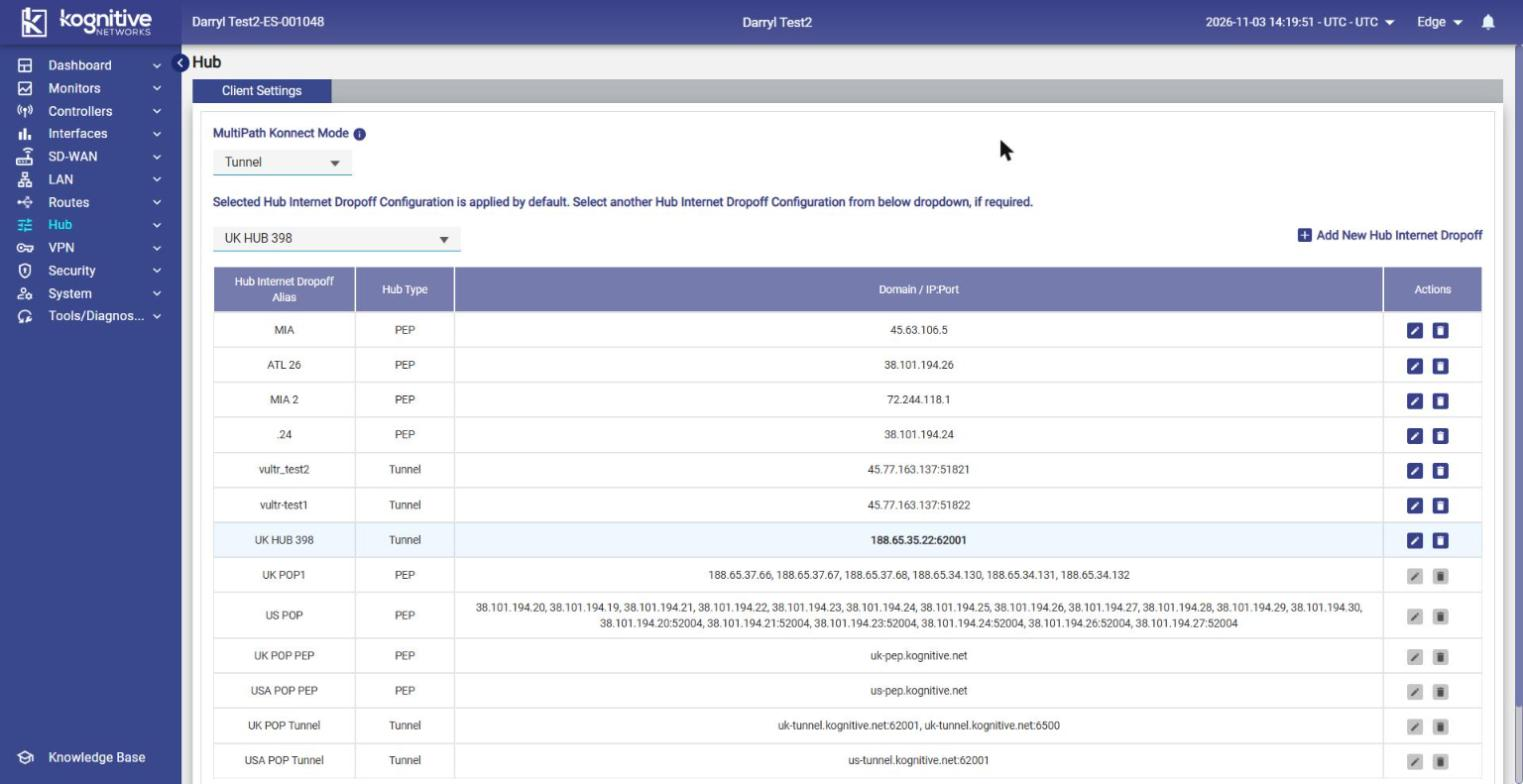
MultiPath Konnect (MPK) Mode Selection
The MultiPath Konnect Mode can be configured from both the Hub Settings and Client Settings screens. Administrators can choose the operating mode best suited for their deployment.
Available Modes
|
Mode |
Description |
|---|---|
|
PEP (Performance Enhancing Proxy) |
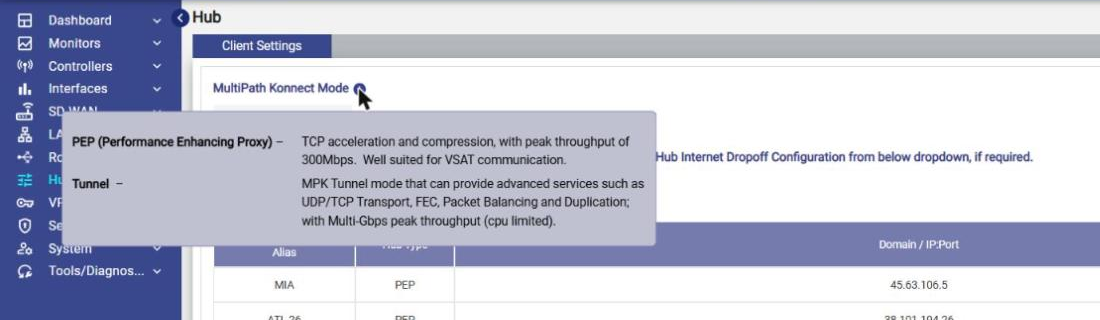
Provides TCP acceleration and compression with a peak throughput of approximately 300 Mbps. Best suited for VSAT and other high-latency links. |
|
Tunnel |
Enables MPK Tunnel functionality with advanced capabilities such as UDP/TCP Transport, Forward Error Correction (FEC), Packet Balancing and Packet Duplication. Supports multi-Gbps peak throughput (CPU dependent). |
An Information (i) icon beside the MultiPath Konnect Mode label explains the capabilities of both modes, see figure below.
To change the MultiPath Konnect Mode, perform the following steps.
-
In the MultiPath Konnect Mode dropdown, select PEP or Tunnel.
-
A confirmation dialog informs the administrator that:
-
Existing traffic sessions will be interrupted.
-
The selected MPK mode will be applied immediately.
-
-
Confirm to apply the new mode.
Selecting the Hub Internet Dropoff Configuration
The screen displays the message Selected Hub Internet Dropoff Configuration is applied by default. Select another Hub Internet Dropoff Configuration from below dropdown, if required.
To use a different Hub Internet Dropoff configuration, select it from the dropdown below the message.
Note: The dropdown displays only the Hub Internet Dropoff configurations whose Hub Type matches the currently selected MultiPath Konnect Mode. For example, when the mode is Tunnel, only Tunnel configurations are listed.
Hub Internet Dropoff Configurations table
All available configurations are listed in a table with the following columns:
|
Column |
Description |
|---|---|
|
Hub Internet Dropoff Alias |
The name of the configuration. |
|
Hub Type |
The MPK mode of the Hub server: PEP or Tunnel. |
|
Domain / IP:Port |
One or more domain names or IP addresses (optionally with port) of the Hub server. |
|
Actions |
Edit Hub Internet Dropoff (pencil) and Delete icons. |
-
The row of the configuration that is currently in use is highlighted, and its Domain / IP:Port is displayed in bold. The note below the table reads: Hub Internet Dropoff Server IP Address is highlighted in bold.
-
Predefined configurations (for example, UK POP1, US POP, UK POP PEP, USA POP PEP, UK POP Tunnel and USA POP Tunnel) are provided by the system. Their Edit and Delete icons are greyed out and they cannot be modified or deleted. Only configurations added by the user can be edited or deleted.
Adding a Hub Internet Dropoff Configuration
-
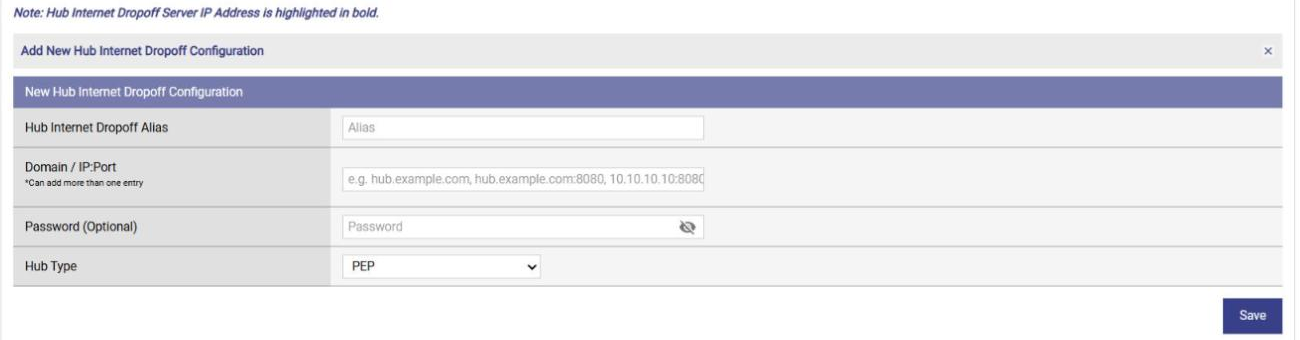
Click Add New Hub Internet Dropoff at the top right of the table. The Add New Hub Internet Dropoff Configuration section opens below the table, see figure below.
-
Enter the Hub Internet Dropoff Alias.
-
Enter the Domain / IP:Port of the Hub server. More than one entry can be added, separated by commas (for example, hub.example.com, hub.example.com:8080, 10.10.10.10:8080).
-
Optionally, enter a Password. Click the eye icon to show or hide the password.
-
In the Hub Type list, select PEP (default) or Tunnel. The configuration is listed in the dropdown only when its Hub Type matches the selected MultiPath Konnect Mode.
-
Click Save. The configuration is saved and added to the table. To close the section without saving, click ×.
Editing a Hub Internet Dropoff Configuration
-
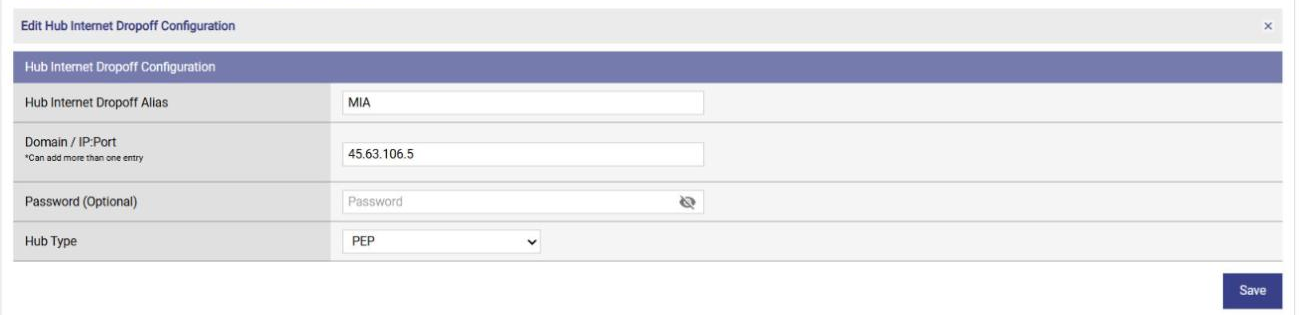
Click the Edit Hub Internet Dropoff (pencil) icon of the configuration. The Edit Hub Internet Dropoff Configuration section opens below the table with the current values, see figure below.
-
Modify the required fields.
-
Click Save. To close the section without saving, click ×.
Deleting a Hub Internet Dropoff Configuration
To delete a configuration added by the user, click the Delete icon of the configuration in the Actions column.