Keywords: Kognitive Cloud, Quota Kontrol, Create Quota, Monitor Quota
Overview
This guide explains how to use Quota Kontrol in the Kognitive Cloud to create and monitor data usage quotas for your network devices. It covers setting quota periods (daily/weekly/monthly/custom), choosing devices and interfaces, defining quota limits, and configuring automated actions (such as notifications, applying WAN profiles or traffic policies, and disabling interfaces) based on usage thresholds. The guide also describes how to view quota usage statistics and interpret key metrics on the Quota Kontrol dashboard. By following this guide, you will be able to enforce usage limits and take automated actions when data thresholds are reached.
1 How To Create Quota
-
Login to the Kognitive Cloud using valid credentials.
-
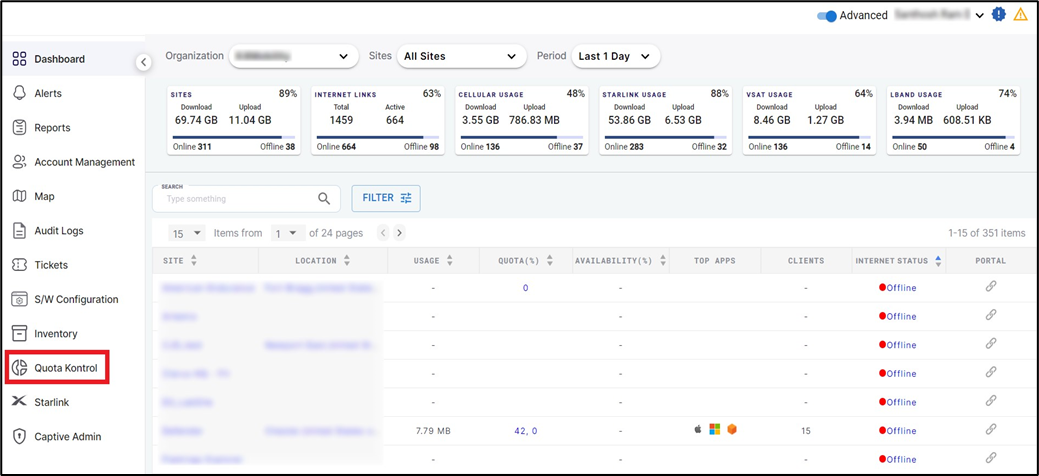
In the Organization field, select the Organization or sub-organization from the dropdown menu. The logged in admin Organization is populated by default here. This is the organization corresponding to the email ID used to login.
-
The dropdown list consists of all the sub-organizations under logged in admin organization.
-
Select the Sites from the dropdown menu.
-
Select Quota Kontrol option from the left menu bar.
-
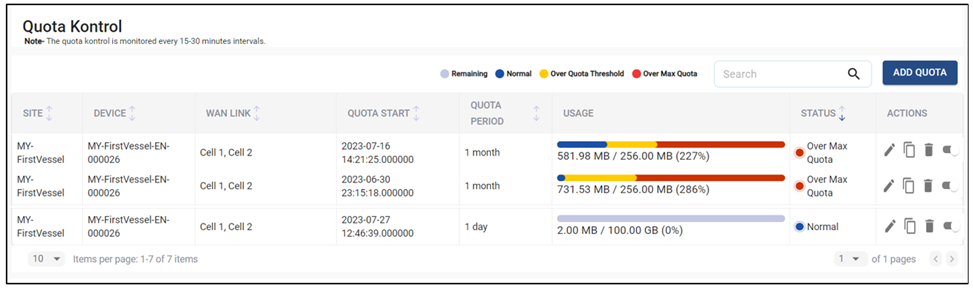
The Quota Kontrol screen opens as shown in the below figure.
-
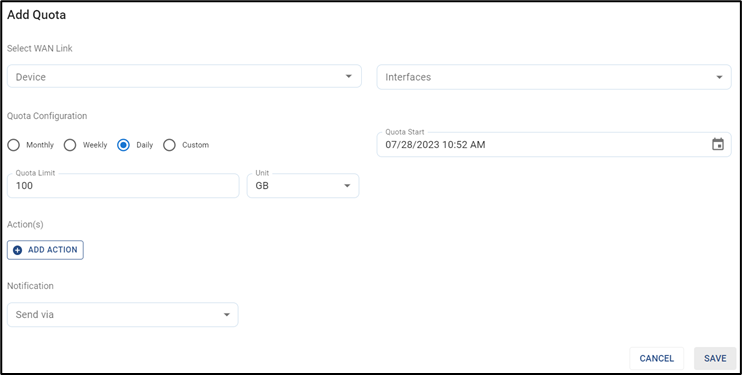
Click Add Quota to create a new Quota. The Add Quota dialog box opens.
-
In the Device field, select the required device from the dropdown menu. The device list in the dropdown will be shown according to the selected site.
-
In the Interfaces field, select the required Interfaces from the dropdown menu. The Interface list in the dropdown will be shown according to the selected device.
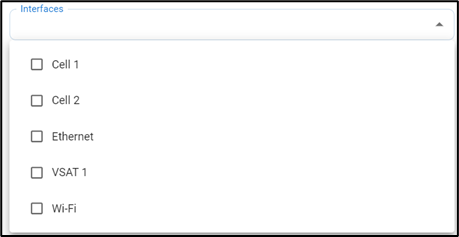
-
Select the Quota Configuration. The user can select any option between Monthly/Weekly/Daily/Custom.
-
If the user selects Custom, enter the Quota Period.
-
Select the Unit from the dropdown menu.
-
-
Enter the Quota Start date and time from the date picker and clock.
-
Enter the Quota Limit.
-
Select the Unit from the dropdown menu. The user can select any option between MB/GB/TB.
-
Click + Add Action to specify the actions to be done when the data usage reaches a specific percentage of total quota.
-
In the % used field, enter the target percentage at which the action should be done.
-
There are four types of actions that the user can configure.
1.1 Send Notification
-
The user can configure to send a notification about the data usage when the data usage reaches a specific percentage of the total quota.
-
In the Action field, select Send Notification from the dropdown menu.
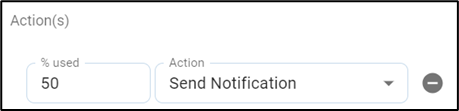
-
In the Notification field, select the checkbox of medium to send the notification. The options available are Email and Microsoft Teams.
-
In the Send To (Via Email) field, select the Email address from the dropdown menu or enter a new email address.
-
Click Save.
-
Now when the usage reaches the given percentage, a notification will be sent to the given Email address and the Teams channel stating details about the data consumption.
1.2 Assign WAN Profile
-
The user can configure to assign particular WAN Profiles to the network when the data usage reaches a specific percentage of the total quota. The new WAN profiles can have different priorities for the WAN Interfaces.
-
In the Action field, select Assign WAN Profile from the dropdown menu.

-
In the WAN Profile field, select the required WAN Profile from the dropdown menu.
-
These new WAN profiles have to be set up in the Edge Portal.
-
In the Access Networks field, Select the Access Networks from the dropdown menu.
-
Click Save.
-
Now when the usage reaches the given percentage, the new WAN Profile will be applied to the network and a notification will be sent to the user.
1.3 Assign Traffic Policy
-
The user can configure to assign particular Traffic Policies to the network when the data usage reaches a specific percentage of the total quota.
-
In the Action field, select Assign Traffic Policy from the dropdown menu.

-
In the Traffic Policy field, select the required Traffic Policy from the dropdown menu.
-
These new Traffic Policies have to be set up in the Edge Portal.
-
In the Access Networks field, Select the Access Networks from the dropdown menu.
-
Click Save.
-
Now when the usage reaches the given percentage, the new Traffic Policies will be applied to the network and a notification will be sent to the user.
1.4 Disable Interface
-
The user can also configure to disable specific interfaces or all interfaces when the data usage reaches a given percentage of the total quota.
-
In the Action field, select Disable Interfaces from the dropdown menu.

-
In the Interfaces field, select the required Interfaces from the dropdown menu. The Interface list in the dropdown will be shown according to the selected device.
-
Click Save.
-
Now when the usage reaches the given percentage, the internet connectivity will be disabled to the selected interfaces and a notification will be sent to the user.
-
Click Cancel icon to cancel.
2 How To Monitor Quota
-
Select Quota Kontrol in the left menu bar from the Kognitive Cloud Homepage.
-
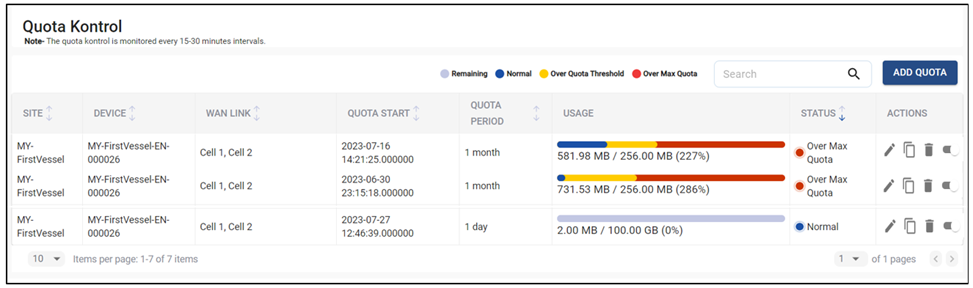
The Quota Kontrol screen opens as shown in the below figure.
-
The table shows the list of devices deployed in the selected site of the user and their data consumption.
-
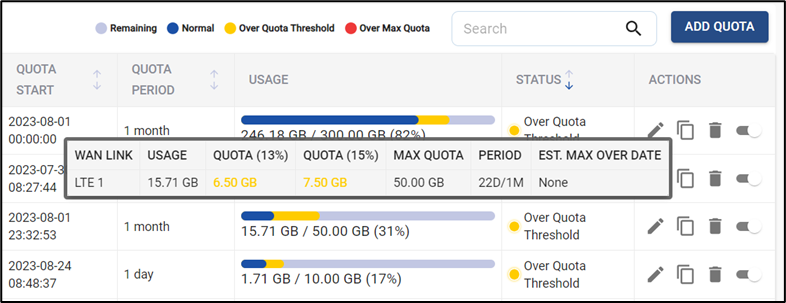
Usage – Breakdown of data usage. The color codes for different levels of data usage are explained below. Refer Figure Color Codes for Usage.
-
Remaining – The amount of data remaining in the quota.
-
Normal – The amount of data consumed by the user.
-
Over Quota Threshold – The amount of data consumed after reaching the threshold amount.
-
Over Max Quota - The amount of data consumed after reaching the maximum quota limit.
-
Hover the cursor on the progress bar to open the pop-up that shows additional information explained below. Refer Figure Usage Column Pop-up.
-
WAN Link – The WAN Links selected for the device.
-
Usage – Amount of data consumed.
-
Quota percentages – The different thresholds limits set for the Quota.
-
Max Quota – The maximum amount data allocated for the Quota.
-
Period – The number of days elapsed / Total number of days for the quota.
-
Est. Max Over Date – The estimated date by which the Quota data would get completely used up.
-
-
-
Status – Status of data usage.