
Keywords: KonnectOS, EOS Upgrade, Software upgrade
This How To document guides the user through the steps required to upgrade their KonnectOS firmware to the latest available version. The benefits of regularly upgrading KonnectOS to its latest version are:
-
Optimization: New releases often come with performance optimizations that make the software run faster and more efficiently.
-
Bug Fixes: Many updates fix bugs so that the user avoid facing slowdowns, crashes, or other performance issues.
-
New Features: Updated software often includes new features and functionalities that can improve productivity and provide new tools for users.
-
Enhanced User Experience: Improvements in the user interface and user experience make the software easier to use and more intuitive.
There are two methods in which the user can upgrade their KonnectOS. They are namely:
-
Upgrading through Kognitive Cloud
-
Upgrading through Edge Portal
Let us take a look at these methods in detail.
Method 1: Upgrading through Kognitive Cloud
From the Inventory screen
-
Log in to Kognitive Cloud using valid credentials.
-
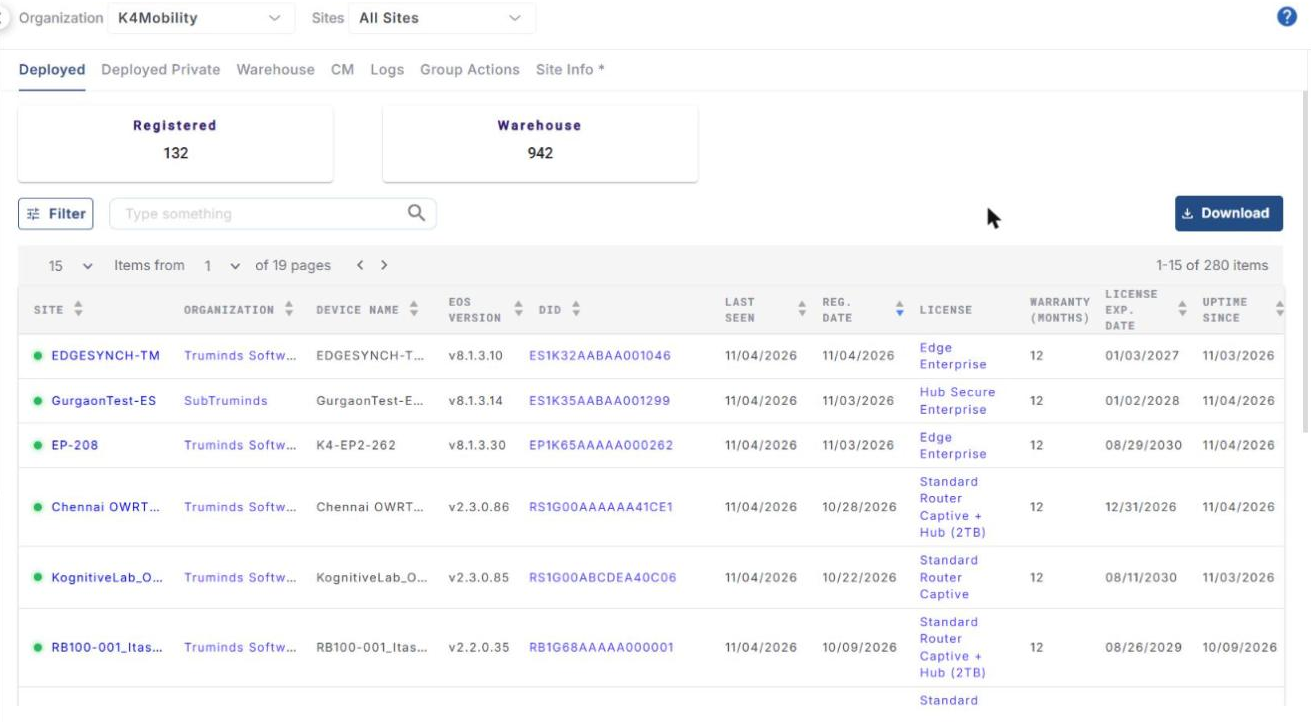
Select Inventory from the left menu bar. The Deployed tab opens, listing the devices deployed in the selected organization.
-
Find the required device. The EOS Version column shows the version it is running.
-
Click the gear icon in the Operations column. The Configurations dialog of the device opens.
-
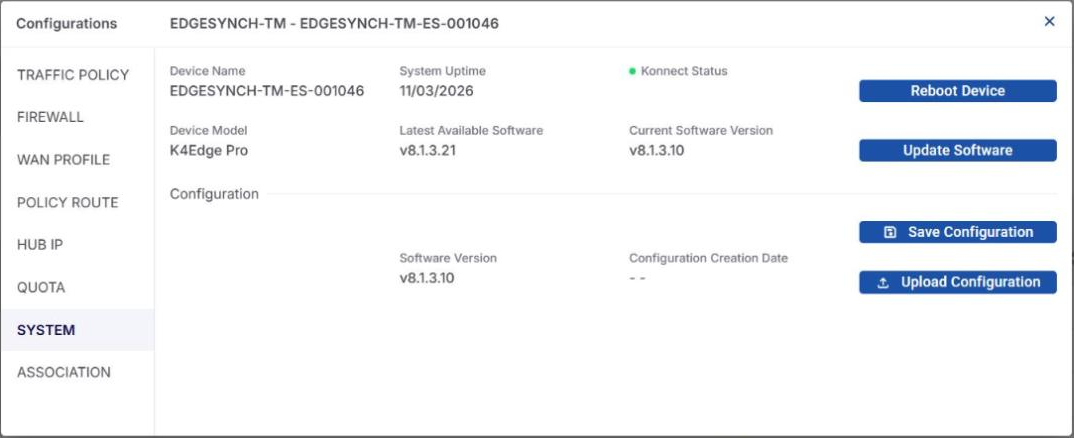
Select SYSTEM from the left menu of the dialog. It shows:
-
Device Name, System Uptime and Konnect Status
-
Device Model
-
Latest Available Software - the newest KonnectOS version available for the device
-
Current Software Version - the version running on the device
-
Configuration - the saved configuration’s Software Version and Configuration Creation Date, with Save Configuration and Upload Configuration buttons
-
Reboot Device button
-
-
If the Latest Available Software is newer than the Current Software Version, click Update Software to download and apply the latest KonnectOS version.
From the Topology screen
You can also update the firmware from a site’s Topology tab.
-
Log in to Kognitive Cloud and select Sites from the left menu bar.
-
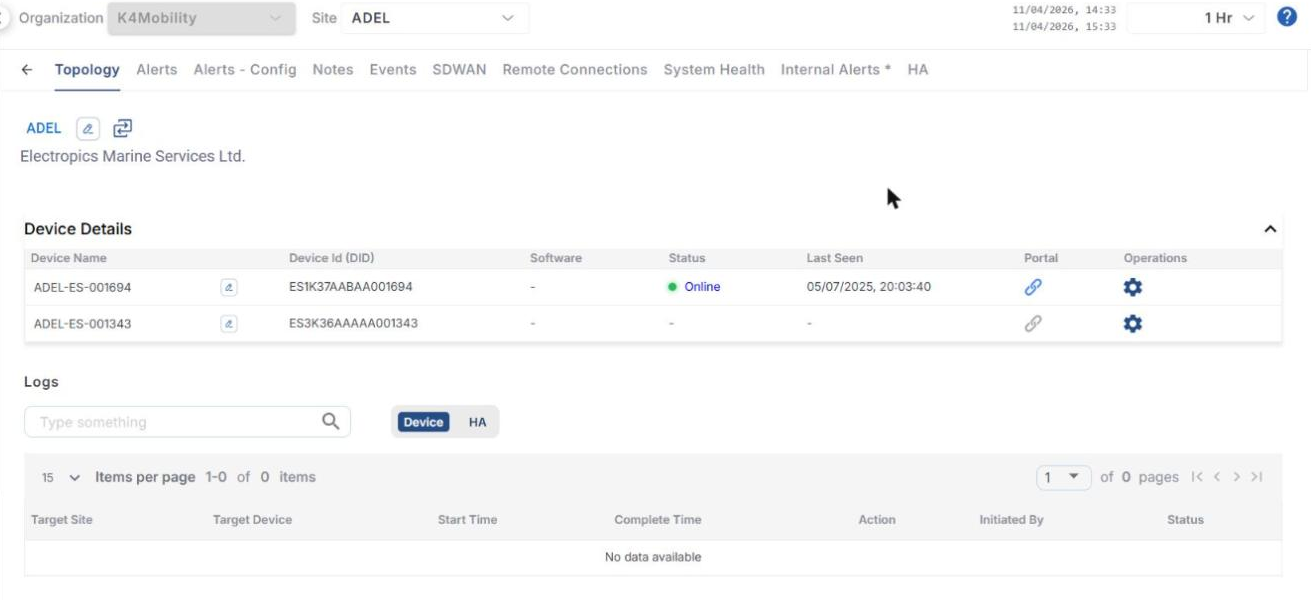
Click the required site name. The site opens on the Topology tab, which lists the site’s devices under Device Details (Device Name, Device Id (DID), Software, Status, Last Seen, Portal and Operations).
-
Click the gear icon in the Operations column of the device to open its Configurations dialog.
-
Select SYSTEM and click Update Software as described above.
Method 2: Upgrading through the KonnectOS 8.x portal
-
Log in to the KonnectOS portal. The Dashboard > Internet Status page opens.
-
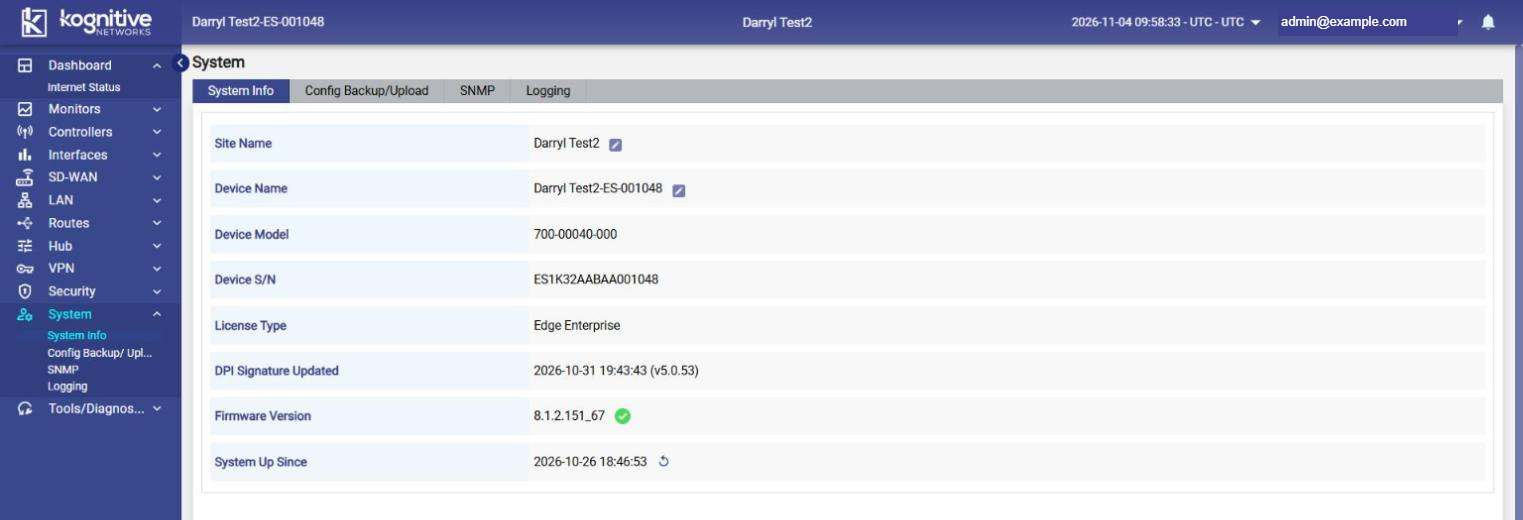
Select System from the left menu. The System Info tab opens by default (the other tabs are Config Backup/Upload, SNMP and Logging).
-
System Info shows Site Name, Device Name, Device Model, Device S/N, License Type, DPI Signature Updated, Firmware Version and System Up Since.
-
Check the Firmware Version field:
-
A green tick next to the version means the device is already on the latest firmware.
-
If a newer version is available, a Download Available icon is shown next to the version instead.
-
-
Click the Download Available icon to download and install the latest version. The device upgrades to the latest KonnectOS version.