Keywords: KonnectOS, External USB Modem, Peplink 5G Adaptor, Ascent Modem 5G
EdgeServer Integration with External USB Modem
The Kognitive Edge platform is modular and extendable, with support for external USB modems that can be used to add cellular connectivity as an additional WAN source. This flexibility allows sites to be provisioned with or without cellular connectivity to control for specific needs or costs at the time of install, but lets network operators upgrade or downgrade resources at individual sites at their discretion. This guide details how to add a USB modem to an KonnectOS device.
Supported Models
The following devices are supported as external USB modems for KonnectOS:
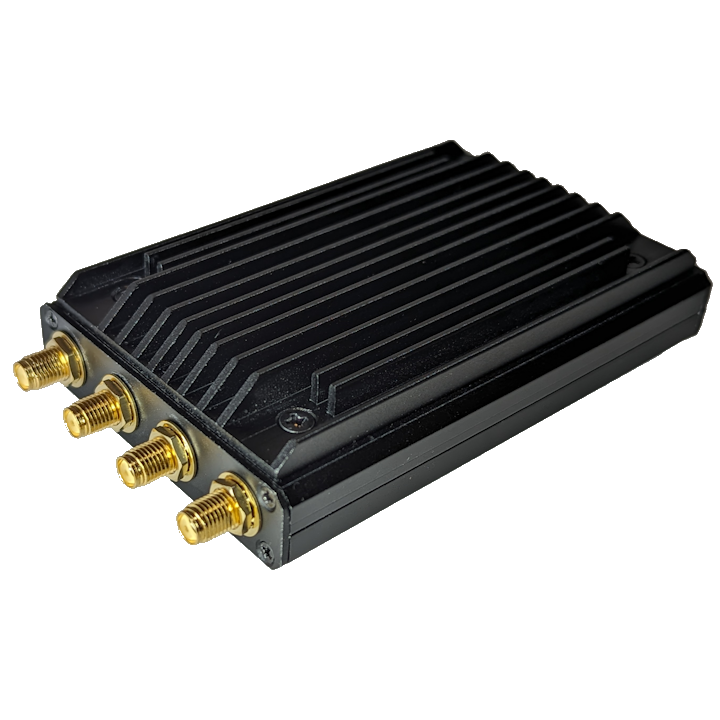
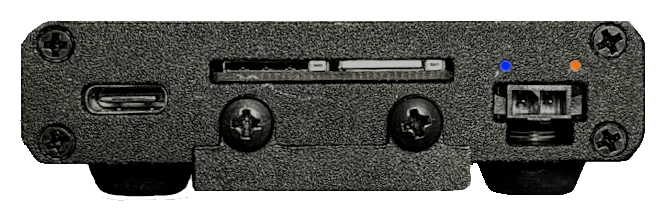
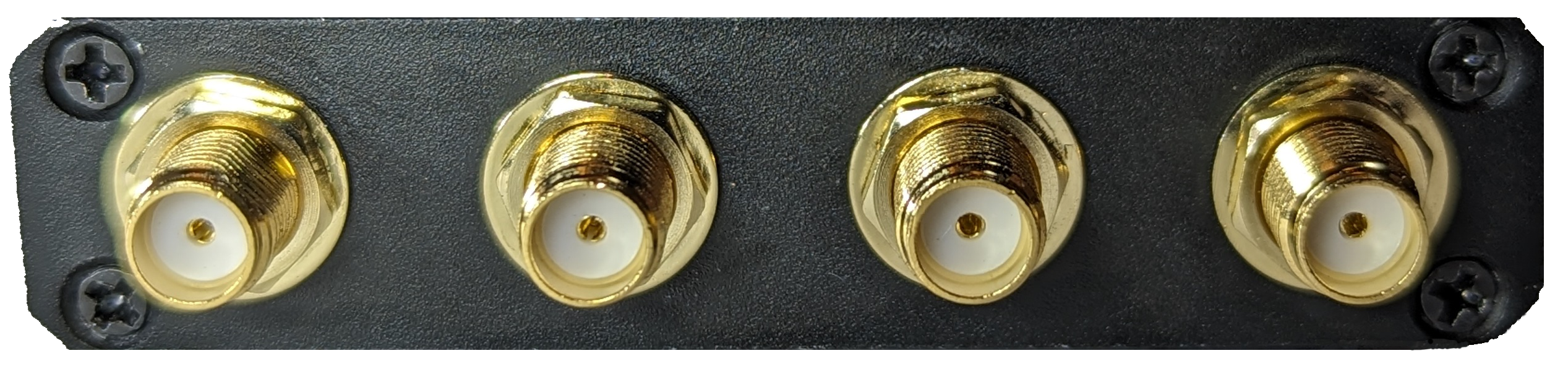
Kognitive Networks Ascent Modem 5G
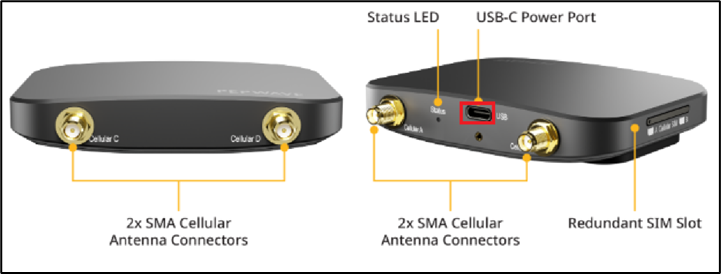
Peplink Max Adapter 5G
See Legacy Models section for more details
Physical Installation - USB connection
The KonnectOS physical hardware uses USB3 type A interfaces for User Wide Area Network (UWAN) inputs. The external modems ship with short length USB-C to USB-A cables. The modem should use the USB-C connector and the KonnectOS device should use the USB-A connector. Alternate cables may be used, provided that they are rated for up to 15W operation and specific for the USB3.0 or higher standard. For a passive cable, any length exceeding 10 feet (approximately 3 meters) necessitates that external power be supplied to the modem. It is the responsibility of the end user to ensure the device's full functionality when using any cables not provided by Kognitive Networks for the installation.
External USB Modems must be connected to the USB Port labeled UWAN1
Physical Installation - Antennas and RF Routing
The external 5G cellular modem has 4x SMA-F connectors and requires 4x antennas for 4x4 MIMO operation. To ensure 5G connectivity and maximum throughput on all bands, all 4 antennas must be used - carrier aggregation pairs use a diverse combination of antennas, maximize the distance between each antenna to achieve the highest signal isolation for best performance. RF cable runs should be minimized, and ideally are less than 10 feet but should never exceed 30 feet. Excess cable should be trimmed to length (not coiled) and the transmission line should be terminated into a 50-ohm SMA-M connector by a qualified technician. Any unused ports on the modem should be terminated with a 50-ohm dummy load.
Software Setup (KonnectOS 8.x)
Once the modem is connected to UWAN1 on a powered-up KonnectOS device, it is detected and added automatically as a Cellular WAN. The steps below show how to check or change its settings.
Check the UWAN1 interface
-
Log in to the KonnectOS portal.
-
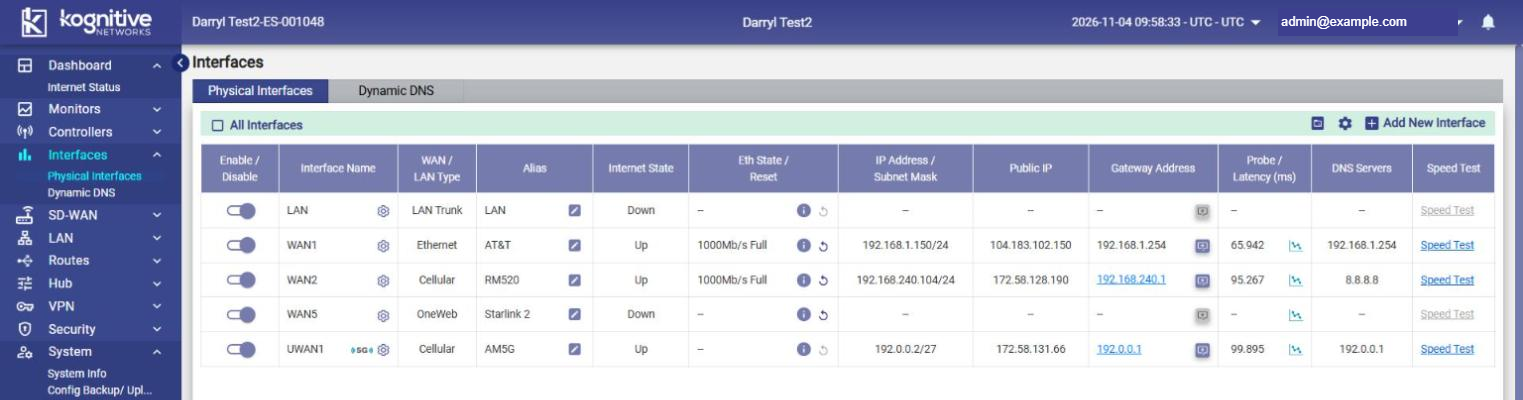
Select Interfaces > Physical Interfaces from the left menu. Tick All Interfaces to show disabled interfaces as well.
-
The external modem appears as UWAN1 with a 5G badge next to the interface name, WAN/LAN Type Cellular, and its alias (AM5G in the example below).
-
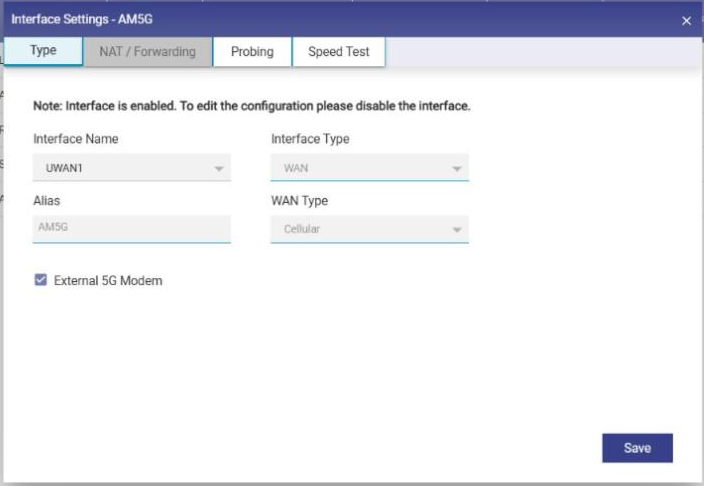
Click the gear icon next to UWAN1. The Interface Settings dialog opens with the tabs Type, NAT / Forwarding, Probing and Speed Test.
-
On the Type tab, check that:
-
Interface Type is WAN
-
WAN Type is Cellular
-
External 5G Modem is ticked
-
-
To change these settings, first disable the interface with its Enable / Disable toggle. While the interface is enabled the dialog shows: “Interface is enabled. To edit the configuration please disable the interface.”
-
Click Save, then enable the interface again with the toggle.
Clicking the Gateway Address link opens the modem’s own web page. The icon next to it (Add to Konnect) adds the modem to Konnect for remote access.
Cellular Controller
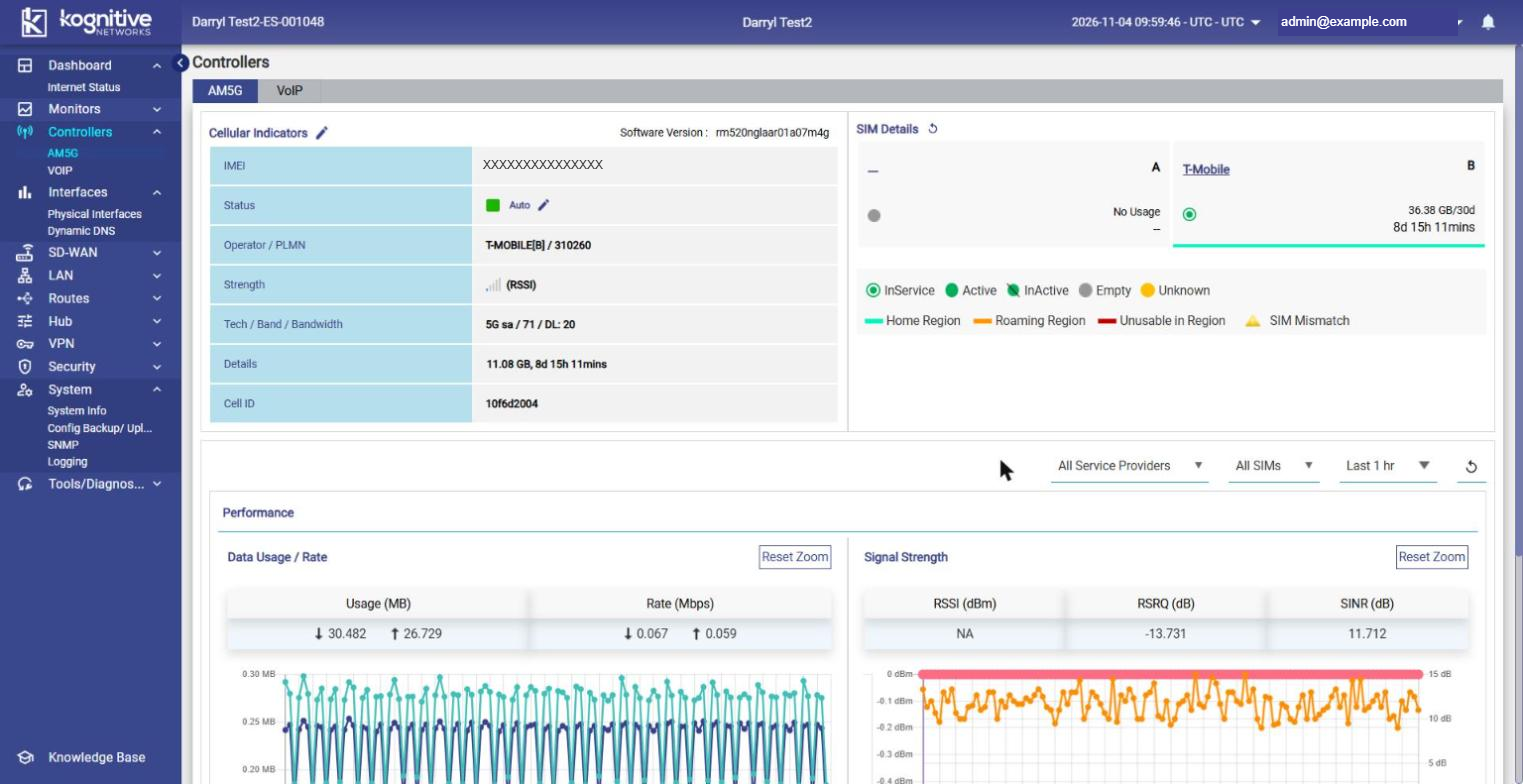
Once the modem is configured, you can view its status and analytics on the controller page.
-
Select Controllers from the left menu. There is one tab per controller (for example AM5G for the external modem and VoIP).
-
Select the modem’s tab.
Screen Tour
Cellular Indicators
-
Software Version (top right of the panel) - the modem firmware version.
-
IMEI - the IMEI of the modem.
-
Status - a green square means the modem is active and in use; a red square means it is inactive. The text shows the SIM priority mode (Auto by default).
-
To change SIM priority, click the pencil icon next to the status. In the SIM Priority Configuration pop-up, select Manual, enter the SIM slots in order of preference and click Save. Use Advanced Settings to change values such as SIM Connection Retry Count and Network Performance Thresholds.
-
-
Operator / PLMN - the service provider with the SIM slot in brackets, followed by the PLMN, for example T-MOBILE[B] / 310260.
-
Strength - signal bars; hover over them to see RSSI, RSRP and RSRQ.
-
Tech / Band / Bandwidth - for example 5G sa / 71 / DL: 20.
-
Details - data used and connected duration when the modem is active; otherwise the operator status.
-
Cell ID - the ID of the serving cell.
SIM Details
Shows each SIM slot (A and B) with its operator, usage and connected time. The legend explains the status icons (InService, Active, InActive, Empty, Unknown) and region colours (Home Region, Roaming Region, Unusable in Region, SIM Mismatch). Use the refresh icon to reload the SIM details.
Performance
Shows Data Usage / Rate (Usage in MB and Rate in Mbps) and Signal Strength (RSSI, RSRQ and SINR) charts. Filter by All Service Providers, All SIMs and time period (for example Last 1 hr), and use Reset Zoom after zooming a chart.
Cellular Actions - Lock, Unlock or Reset the modem
-
Click the pencil icon next to Cellular Indicators. The Cellular Actions dialog opens.
-
Expand Cell Lock/Unlock/Reset.
-
In Select Cell, choose the cell (for example Cell 1).
-
In Select Operation, choose the action:
-
Lock Modem - locks the modem to the current cell.
-
Unlock Modem - shown when the modem is locked; removes the lock.
-
Reset Modem - resets the modem.
-
-
Click Proceed and confirm the alert. A message confirms when the action is complete.
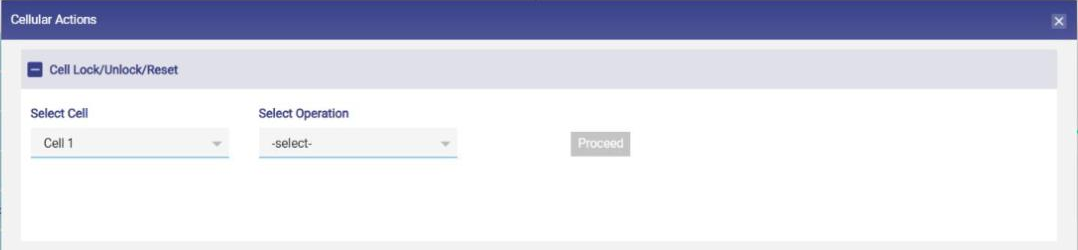
Resetting the modem takes cellular connectivity down until the modem restarts; the status square turns red during the reset. Afterwards the controller scans for and selects an operator again.
Legacy Models
The images of the supported models are illustrated below: