
Keywords: KonnectOS, Captive Access Network, CAN, Bypass CAN
Overview
This guide explains how to bypass the captive access functionality for specific devices on a captive-enabled network managed by an KonnectOS device. It covers creating a Device Traffic Policy and applying it to one or more devices so that they are excluded from captive portal requirements and instead follow custom traffic policy rules. By following this guide, you will be able to allow selected devices to access the network without being redirected to the captive login page while maintaining controlled traffic behavior.
Enabling Captive Access in the Access Networks allows for each crew member/user to have a provisioned account with an associated Service Plan. The Account’s “Service plan” is customized to match the corporate policy (Quota, Duration, Traffic Policy – e.g., 10GB/month with defined traffic policies).
In some scenarios, the user might want to bypass the captive access functionality for few specific devices under the network. This document aims to explain how to bypass the captive access network functionality.
The user can bypass captive access in specific devices by creating and applying unique Device Traffic Policies. Follow the below steps to create and apply the device traffic policy.
Step 1: Create a Device Traffic Policy
-
Login into the KonnectOS Portal.
-
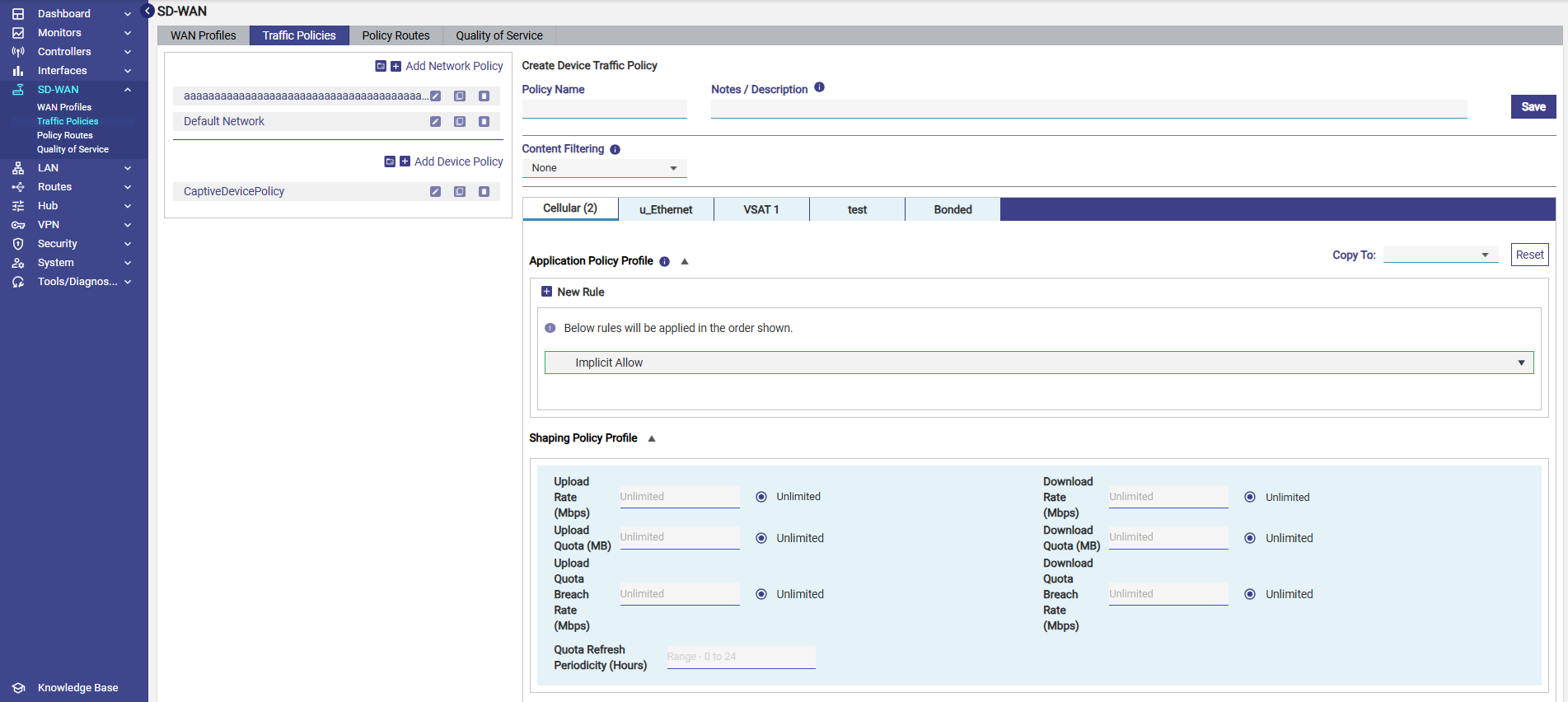
Select the SD-WAN section from the left menu bar and select the Traffic Policies screen.
-
Click + Add Device Policy button to create a new device traffic policy. The Policy Name field becomes available under the Create Device Traffic Policy section.
-
Enter the Policy Name.
-
Select the required filters in the Content Filtering field if needed.
-
Enter the required parameters in the Shaping Policy Profile section.
-
Configure the rules in the Application Policy Profile section as required.
-
Click Save button to save the new Device Traffic Policy.
Step 2: Apply the Device Traffic Policy to the required devices
-
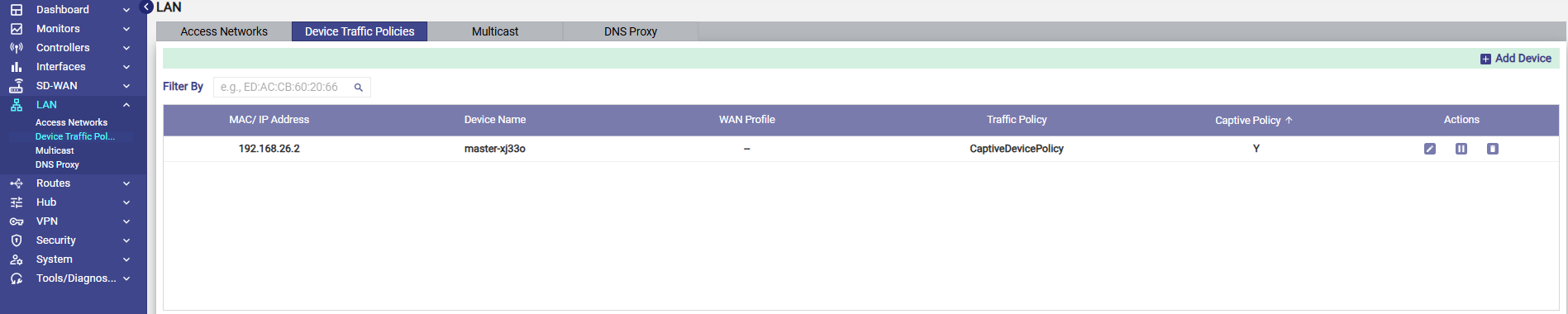
On the left menu bar, select the LAN section.
-
Select the Device Traffic Policies screen.
-
Select the Add Device button.
-
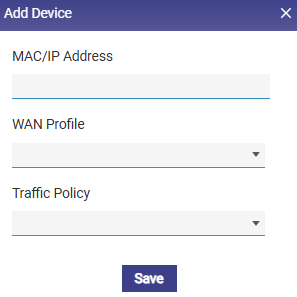
The devices can be identified only by their MAC or IP Addresses.
-
In the MAC/IP Address field in the Add Device dialog box, select the required device/devices from the dropdown menu.
Note: Currently Captive Access Bypass is supported only using IP addresses. Select the required device’s IP address.
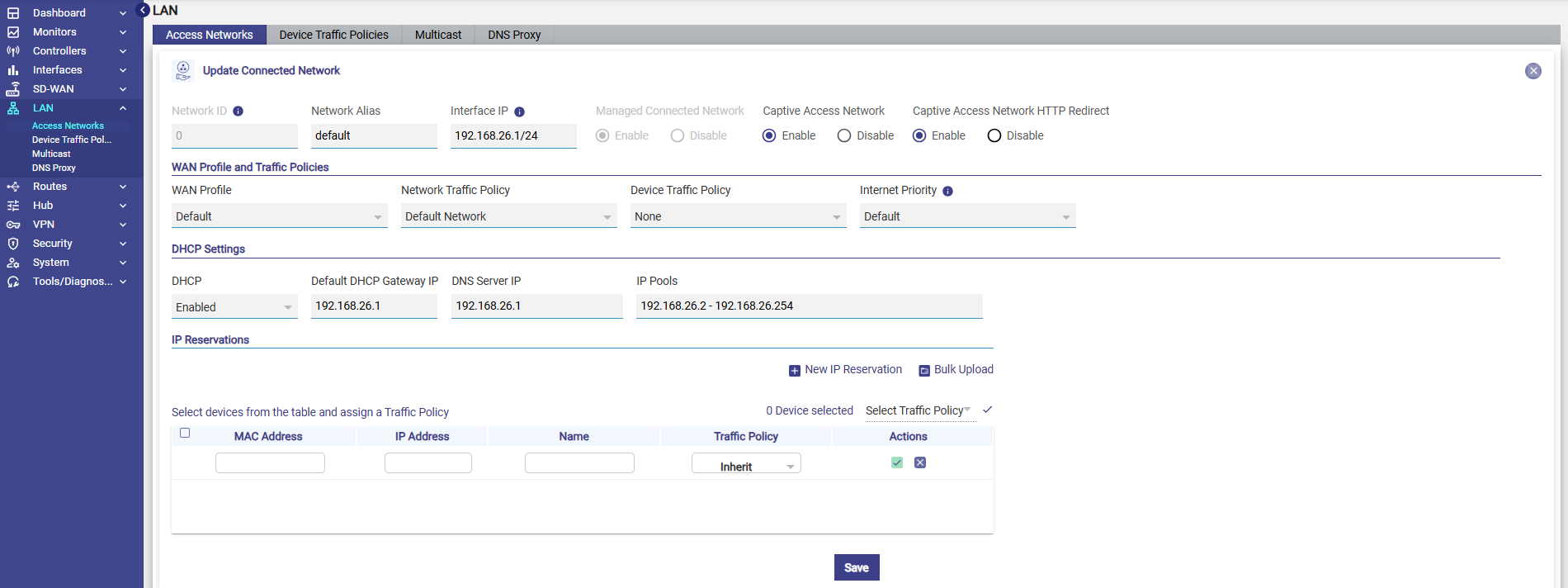
If the device's IP address changes frequently, you can create an IP reservation for that device in the Access Networks screen using the device’s MAC address. Select the LAN section from the left menu bar and select the Access Networks screen. Create the IP Reservations in the IP Reservations section.
This way, the IP stays the same and the bypass continues to work.
-
Select the WAN Profile if applicable.
-
In the Traffic Policy field, select the Device Traffic Policy created in Step 1.
-
Click Save button to apply the Device Traffic Policy to the selected device/devices.
-
Now the devices selected here will be excluded from their Captive Access functionality and will follow the newly created Device Traffic Policy.