
Aim: Use a Recovery USB drive to restore an Edge unit that no longer boots or cannot be recovered remotely. The recovery process erases the unit and reinstalls the KonnectOS software. After recovery, the unit starts with the default configuration.
Warning
Recovery erases all logs, data, configuration and installed software on the Edge unit. Only the device identity is kept. Back up anything you need before you start.
Supported Edge units
|
Supported |
Not supported |
|
EC, EF, E4, EP and ES units |
VX, EN and older units |
Choose a recovery method
There are two ways to prepare the Recovery USB drive. The boot and recovery steps are the same for both.
|
|
Option 1: Recovery image and software package on the USB drive |
Option 2: Recovery image only |
|
How it works |
You copy the recovery ISO and the KonnectOS software package to the USB drive. The unit installs the software from the USB drive. |
You copy only the recovery ISO to the USB drive. The unit downloads the KonnectOS software from the Kognitive cloud over its WAN connection. |
|
Pros |
|
|
|
Cons |
|
|
|
Use it when |
The site has limited, costly or unreliable internet. |
The site has a good WAN connection. |
Before you begin
You need:
-
A USB drive of at least 32 GB.
-
A Windows laptop or PC to prepare the USB drive.
-
The latest Kognitive recovery ISO image. For Option 1, also the KonnectOS software package.
-
A monitor (HDMI) and a USB keyboard to connect to the Edge unit.
-
Physical access to the Edge unit.
-
An active WAN connection on the Edge unit for software activation.
Step 1: Install Ventoy on the USB drive
Ventoy makes the USB drive bootable and lets you start the recovery ISO directly.
|
Installing Ventoy erases everything on the USB drive. |
-
Download Ventoy 1.1.18 for Windows from http://www.ventoy.net .
-
Extract the downloaded file, open the Ventoy folder and run Ventoy2Disk.
-
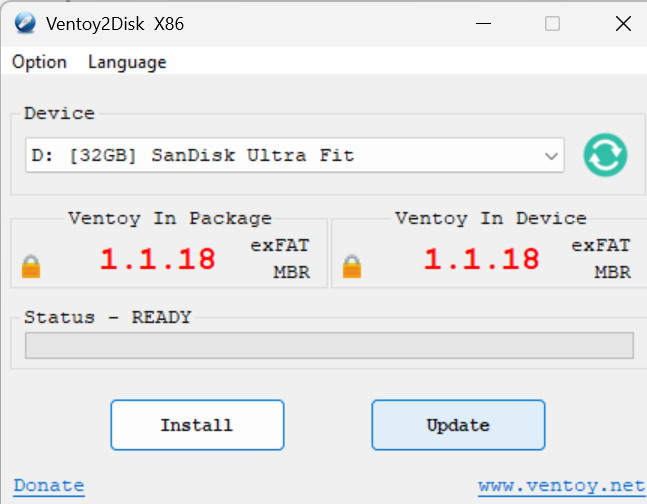
Select your USB drive in the Device list and click Install.
-
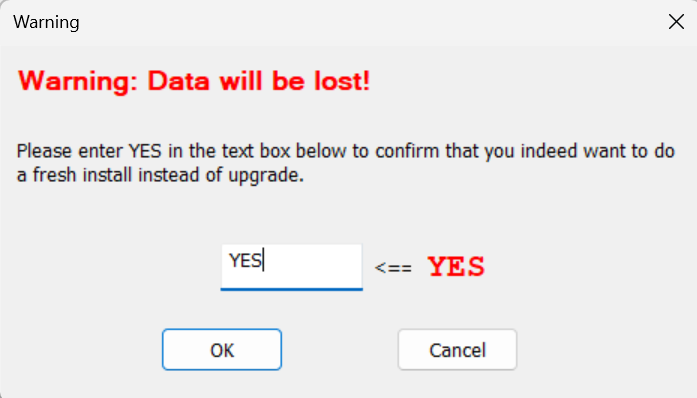
A warning says that all data on the USB drive will be erased. Type YES and click OK.
-
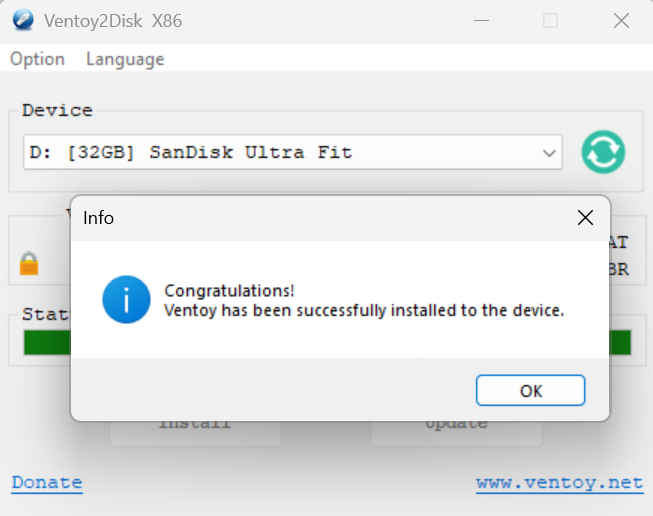
Wait for the message that Ventoy was installed successfully.
Step 2: Copy the recovery files to the USB drive
Follow the steps for the method you chose.
Option 1: Recovery image and software package
-
Copy the recovery ISO file to the root of the USB drive.
-
Copy the KonnectOS software package to the kognitive/package folder on the USB drive. [To be confirmed: exact folder and file names.]
Option 2: Recovery image only
-
Copy the recovery ISO file to the root of the USB drive.
-
Make sure the Edge unit will have an active WAN connection during recovery.
|
Keep the ISO file on the USB drive for both options. The unit cannot boot into recovery without it. |
Step 3: Connect to the Edge unit
-
Connect a monitor to the HDMI port on the Edge unit.
-
Connect a USB keyboard.
-
Insert the Recovery USB drive into a free USB port.
-
Make sure the WAN connection is plugged in and active.
Step 4: Set the USB drive as the first boot device
-
Power on or restart the Edge unit and press Esc to open the BIOS setup.
-
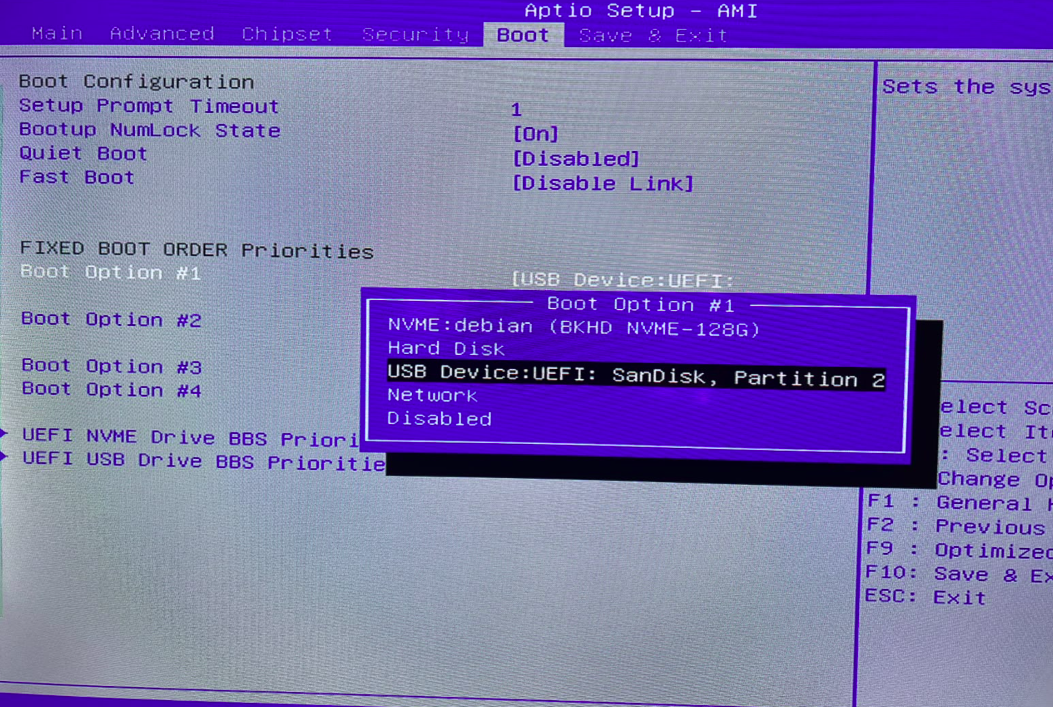
Go to the Boot tab.
-
Select Boot Option #1 and choose the USB device (for example, USB Device:UEFI: SanDisk, Partition 2).
-
Press F10 to save and exit. The unit restarts from the USB drive.
Step 5: Start the recovery
-
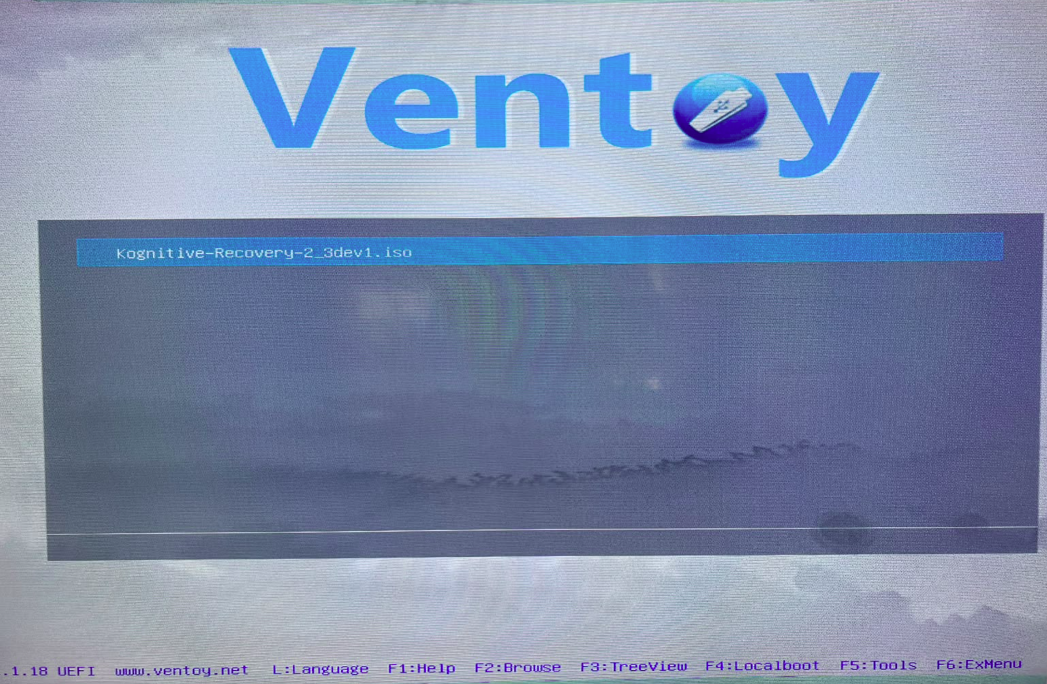
The Ventoy menu lists the recovery ISO. Select it and press Enter.
-
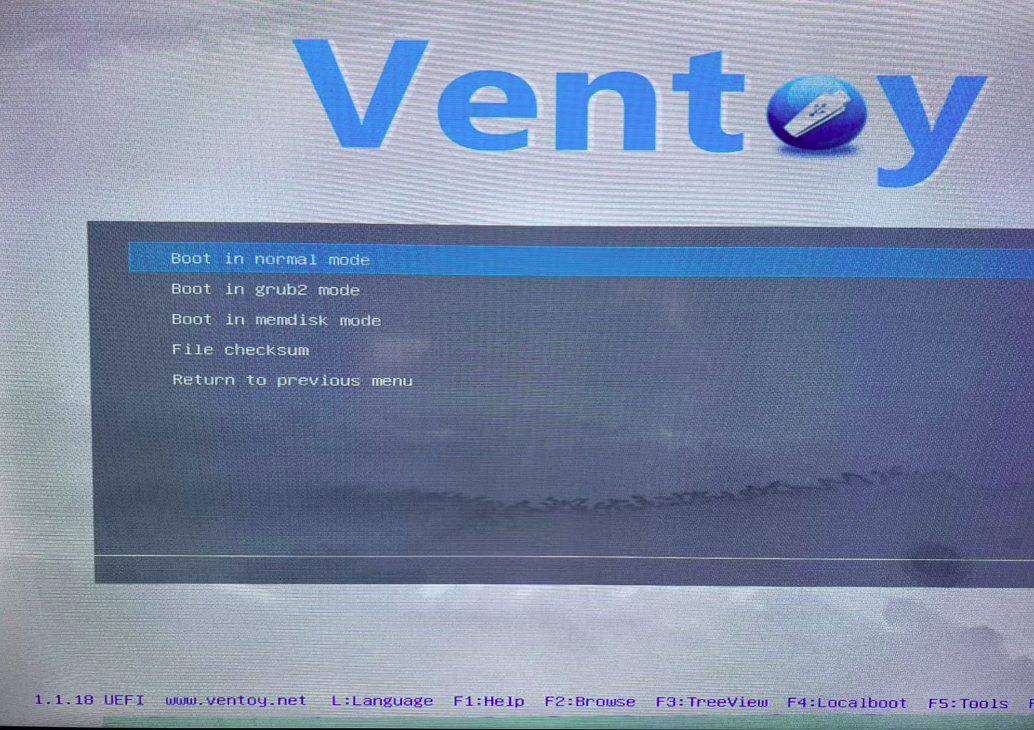
Select Boot in normal mode and press Enter.
-
The console shows Mounting boot media, please wait.... Recovery has started.
Step 6: Wait for recovery and installation to finish
-
Recovery preparation takes about 5 minutes.
-
When the console shows Recovery prep complete. Rebooting in 5s., remove the USB drive. It is no longer needed.
-
The unit installs and activates the KonnectOS software automatically. It restarts two more times.
-
Recovery is complete when the login prompt appears.
Warning
Do not power off the unit or interrupt the process until the login prompt appears.
After recovery
The unit starts with the default configuration. Configure the unit again for your site.
Troubleshooting
|
Message or symptom |
Cause |
What to do |
|
NO ISO or supported IMG files found |
The recovery ISO is not on the USB drive. |
Copy the recovery ISO to the root of the USB drive and try again. |
|
NO network and no valid USB packages |
The unit has no WAN connection and no valid software package on the USB drive. |
Connect an active WAN link (Option 2), or copy the software package to the USB drive (Option 1). |
|
Recovery fails to read files, or the unit starts in Emergency Mode and asks for a root password |
The ISO or package may be damaged during download or copy. |
Download the files again and recreate the USB drive. You can check the ISO with File checksum in the Ventoy menu. |
|
The unit does not boot from the USB drive |
USB is not the first boot device. |
Repeat Step 4 and save with F10. |
If the problem continues, contact Kognitive support.