
The running configuration of the KonnectOS System can be backed up, downloaded and later uploaded (restored) from the Config Backup/Upload tab. To access it, select System from the side menu bar and click the Config Backup/Upload tab. The tab has two sections, Config Backup and Config Upload, see figure below.
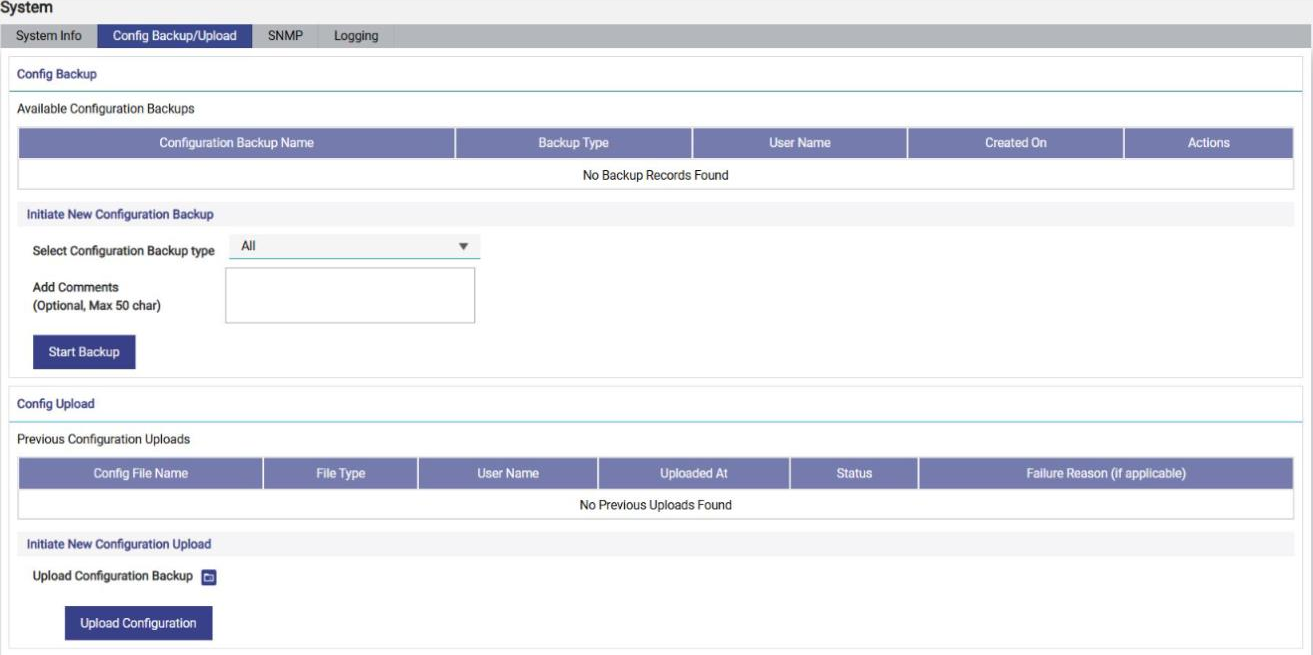
Creating new Configuration Backup
The Available Configuration Backups table lists the backups available on the system. If there are no backups yet, the table displays No Backup Records Found. The table has the following columns:
|
Column |
Description |
|---|---|
|
Configuration Backup Name |
The name of the backup file. |
|
Backup Type |
The configuration type that was backed up (All, Interfaces, Traffic Policies, Networks or Firewall Rules). |
|
User Name |
The user who created the backup. |
|
Created On |
The date and time when the backup was created. |
|
Actions |
Icons to download the backup to the local computer. |
To initiate a new configuration backup, perform the following steps.
-
Under Initiate New Configuration Backup, select the Configuration Backup Type. The options are:
-
All (default) – the complete configuration.
-
Interfaces – all the LAN/WAN interface configuration and WAN Profiles.
-
Traffic Policies – all traffic policies, including device policies.
-
Networks – all Access Network configuration, including DHCP reservations.
-
Firewall Rules – all firewall rules.
-
-
Optionally, enter a comment in Add Comments to identify the backup (maximum 50 characters).
-
Click Start Backup.
Once the backup is ready, it is listed in the Available Configuration Backups table, see Figure Available Configuration Backups. To save the backup to the local computer, click the Download icon in the Actions column of the backup.

Uploading Configuration from Backup
The Previous Configuration Uploads table lists the uploads done on the system. If there are no uploads yet, the table displays No Previous Uploads Found. The table has the following columns:
|
Column |
Description |
|---|---|
|
Config File Name |
The name of the uploaded configuration file. |
|
File Type |
The configuration type of the uploaded file. |
|
User Name |
The user who uploaded the file. |
|
Uploaded At |
The date and time of the upload. |
|
Status |
The result of the upload. |
|
Failure Reason (if applicable) |
The reason why the upload failed, if it failed. |
To upload a configuration backup, perform the following steps.
-
Under Initiate New Configuration Upload, click the Upload Configuration Backup icon

-
Click Upload Configuration. The configuration upload is initiated and takes a few minutes. Once the configuration is applied, the services are restarted and a corresponding message is displayed. The upload is also listed in the Previous Configuration Uploads table.
-
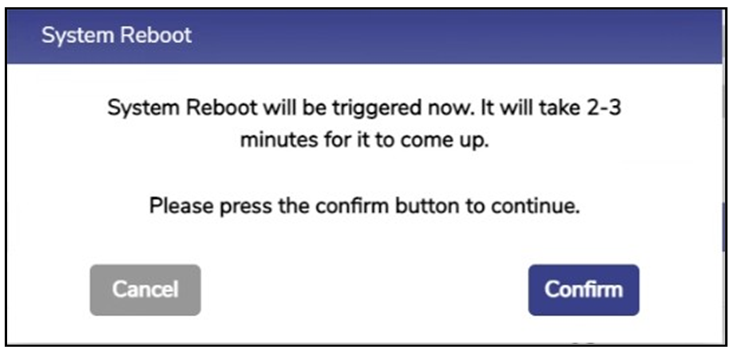
Reboot the KonnectOS System to complete applying the configuration: click the Reboot icon and click Confirm in the confirmation pop-up, see figure below. Once the system comes up, the uploaded configuration is in use.
Note: Configuration backups can now be restored between ES110 systems to ES120 systems, simplifying migration across supported systems.