
-
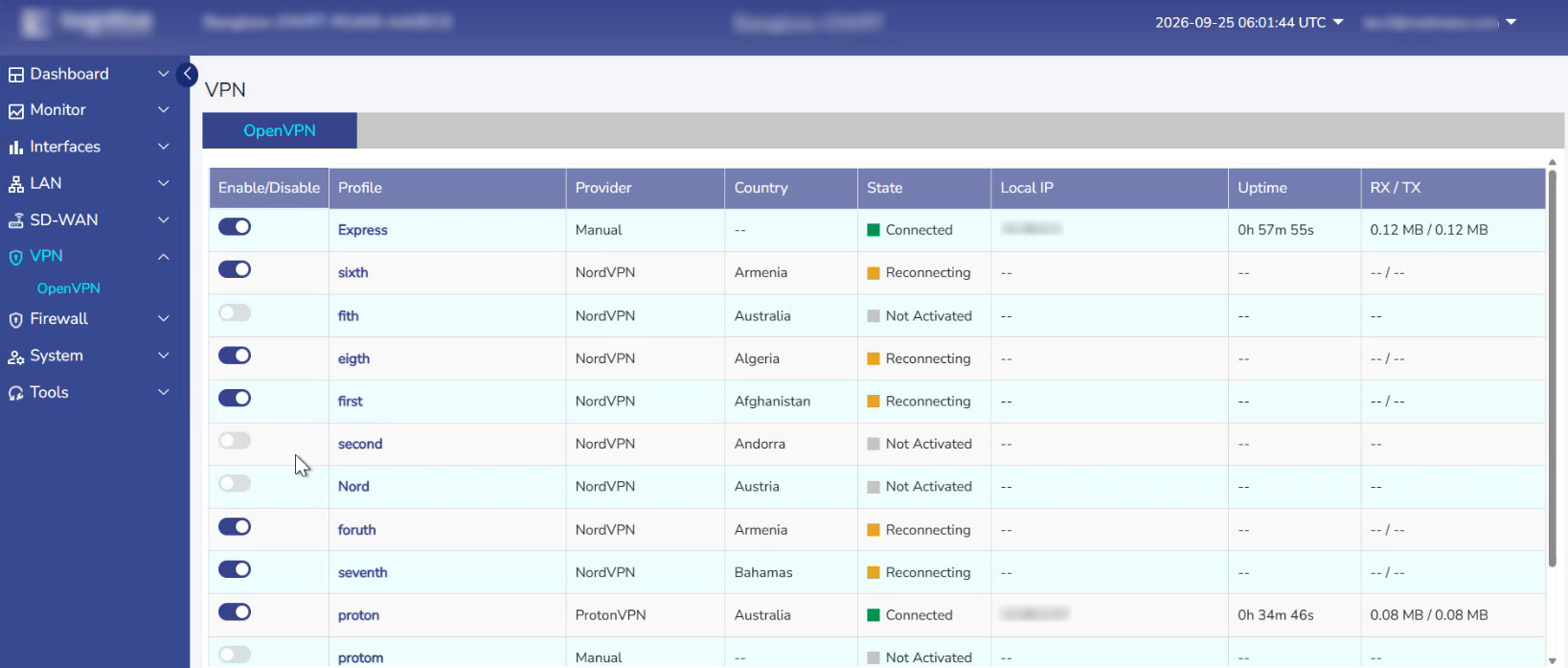
Select the VPN option from the side menu bar. The OpenVPN tab is selected by default. This screen shows every OpenVPN client profile configured for the device, with each profile's live connection status.
-
The VPN screen on the KonnectOpen device is read-only except for the ability to enable or disable each profile. You cannot create, edit or delete a profile here.
-
VPN profiles are created, edited and deleted from the Kognitive Cloud portal, under Topology → Configuration → VPN → OpenVPN. Profiles that are set up there appear on this screen automatically.
-
Policy Routes that send traffic through a VPN profile are also configured only from the Kognitive Cloud portal.
OpenVPN
The OpenVPN table shows the following information:
-
Enable/Disable Toggle – Click the toggle to activate or deactivate the VPN profile. This is the only action available on the device.
-
Profile – The name of the VPN profile, as set in the Kognitive Cloud portal. Click the name to view the profile's details.
-
Provider – The VPN service provider used by the profile:
-
NordVPN
-
ProtonVPN
-
Manual – The profile was created from an uploaded .ovpn configuration file, for providers that don't offer an external API.
-
-
Country – The country of the VPN server the profile connects to. Manual profiles show "--", because the server details come from the .ovpn file.
-
State – The current connection state of the profile, shown by a coloured indicator:
-
Not Activated (grey) – The profile is disabled. Every new profile starts in this state.
-
Connecting – The profile has been enabled and the tunnel is being set up.
-
Connected (green) – The VPN tunnel is up and passing traffic.
-
Reconnecting (orange) – The profile is enabled, and the device is trying to set up or restore the tunnel.
-
Failed – The tunnel couldn't be set up.
-
-
Local IP – The IP address given to the device on the VPN tunnel (e.g., 10.39.0.2).
-
Uptime – How long the tunnel has been connected (e.g., 0h 57m 55s).
-
RX / TX – Data received and sent over the tunnel (e.g., 0.12 MB / 0.12 MB).
Local IP, Uptime and RX / TX are shown only for connected profiles. Other profiles show "--" in these columns.
Enable or Disable a VPN Profile
-
Find the profile in the OpenVPN table.
-
Click the Enable/Disable toggle.
-
When you enable a profile, its state changes from Not Activated to Connecting, and then to Connected. If the tunnel can't be set up, it shows Failed.
-
When you disable a profile, its tunnel is closed and its state returns to Not Activated.
-
Note: A maximum of 8 OpenVPN profiles can be active at the same time. This limit is the same as in the Kognitive Cloud portal. When 8 profiles are already enabled, you can't turn on the toggle for any other profile, and a tooltip says the maximum of 8 concurrent VPN sessions has been reached. Disable an active profile first to enable another one.
Note: To add, edit or delete a VPN profile, or to route traffic through a profile with a Policy Route, use the Kognitive Cloud portal.