Skip table of contents

Quality of Service

Quality of Service (QoS) settings provide flexibility to enable or disable Traffic Policies (Shaping and DPI), Usage statistics in the system. With QoS disabled, the system will not provide Traffic Policies, Client and Access Network usage, and DPI services. When QoS is enabled, the system performance is approximately halved. It is recommended if the KonnectOS System is performing Cellular/Satellite GW services only, then it makes good sense to disable QoS to improve performance.

Note: During installation of KonnectOS System, QoS is enabled. Only users with administrative rights have access to this section and can disable QoS.
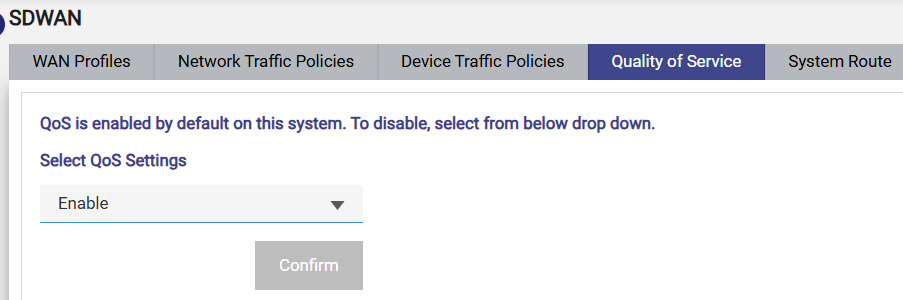
image-20241115-141029.png

Quality of Service

Konnect OS Data Priority

The Konnect OS Quality of Service (QoS) mechanism prioritizes IP data to ensure critical or time-sensitive IP data receives preferential forwarding over a limited capacity WAN link.

The system has Priority four levels:

  1. Real-Time (RT)

  1. High (HI)

  1. Standard (ST)  

  1. Low (LO)

The Priority level for each traffic stream is set within LAN / Access Networks (default setting) and within Traffic Policies.  The pair allow for default behaviour and precise device and application prioritization configurability - thus ensuring that business-critical applications consistently benefit from optimal performance.  

The QoS Scheduler forwards packets in a strict priority order. Thus, all packets in the ‘RT’ band are processed first, followed by ‘HI’, then ‘ST’, and then ‘LO’. Such an approach guarantees that important traffic, like voice or video calls, experiences minimal delay, while less urgent data is serviced only when higher priority queues are empty[1].

Note: Consequently, if for instance the DL MIR is 100 Mb/s, and there is 100 Mb/s of RT traffic, then all of it will be used for RT traffic and no HI, ST or LO priority traffic will be forwarded.

Note that ‘Prioritization’ only matters when there is WAN contention.  To assure proper prioritization the KonnectOS system requires a Maximum Information Rate (MIR) set per WAN priority level (per WAN Profile).  This allows the QoS scheduler to manage contention and reliably prioritize data per WAN Profile/Priority/Path.

Use Case

Prioritize VOIP and Operations Traffic over Crew Access

image-20260216-072655.png

Konnect OS QoS Priority Network Reference Design

The reference design has three access networks with 4 WAN links.  Note that the WAN links as presented are for the “Standard” WAN Profile (shown below) that bonds the Cellular links, and have an MIR set per WAN priority.

With this design, an operator would want to consider the following:

  1. Prioritize Internet access between different user groups (such as VOIP networks have higher priority than Operations, which is higher priority than Crew).

  1. Crew having the lowest priority, however prioritize VOIP/RTC application traffic (for this group).

  1. Rate Cap/Limit “Operations” from using too much data at the expense of hurting Crew usability.

  1. Ability to set different priorities within different WAN Profiles; these run independently of each other.

(Point 1) To start this off, lets define the WAN profile, and setup the default Access Network Priorities.

·        Standard WAN Profile, note that the MIR set is the hard limit – the Edge will not transmit higher than the MIR set on WAN Priority level.

o   Priority 1 is Ethernet – with DL/UL MIR set to service rate

o   Priority 2 is Bonded Cellular – the DL/UL MIR rates are estimates.

o   Priority 3 is VSAT – The DL/UL MIR rates set on VSAT plans

Figure 2 WAN Profile utilized, with MIR set allowing for Priority use.

·        Set Access Network IP Data Priority

o   VOIP à Realtime

o   Operations à High

o   Crew à Low

Figure 3  Application and Operations identification and priority.

(Point 2) Additionally, one can prioritize Real Time Communication (RTC) utilized by the crew, however base traffic is low priority.  Assign this traffic policy to the Crew Network and/or Device when using Captive Portal Access.

·        Shown here is a Device Policy, setting RTC to Realtime w/ a 1/1 Mbps MIR.

·        Another option is to create a Network Traffic Policy with RT priority for all RTC apps – and no rate control.

(Point 3) Operations Network has a ‘High’ IP data priority setting, however one can set an access network rate limit on Operations to prevent it from starving the Crew network of IP data.  An example here is that we leave Operations @ ‘High’, however set a rate limit for the network to prevent starting Crew network.   To do this, set an Access Network Traffic policy on Operations with a DL/UL Rate limit (shown below).


[1] Consequently, if for instance the DL MIR is 100 Mb/s, and there is 100 Mb/s of RT traffic, then all of it will be used for RT traffic and no HI, ST or LO priority traffic will be forwarded.

Disabling QoS

To disable QoS, perform the following steps.

Steps

·       Click Quality of Service tab under the SDWAN screen.

·       From the drop down, select 'Disable’ option. See Figure Quality of Service Disable.

·       Click Confirm.

JavaScript errors detected

Please note, these errors can depend on your browser setup.

If this problem persists, please contact our support.