
User Terminals
Click User Terminals tab from the Starlink screen to open the User Terminals screen.
All the User Terminals that are part of the linked Service Accounts and Service Lines are shown in the User Terminals table.
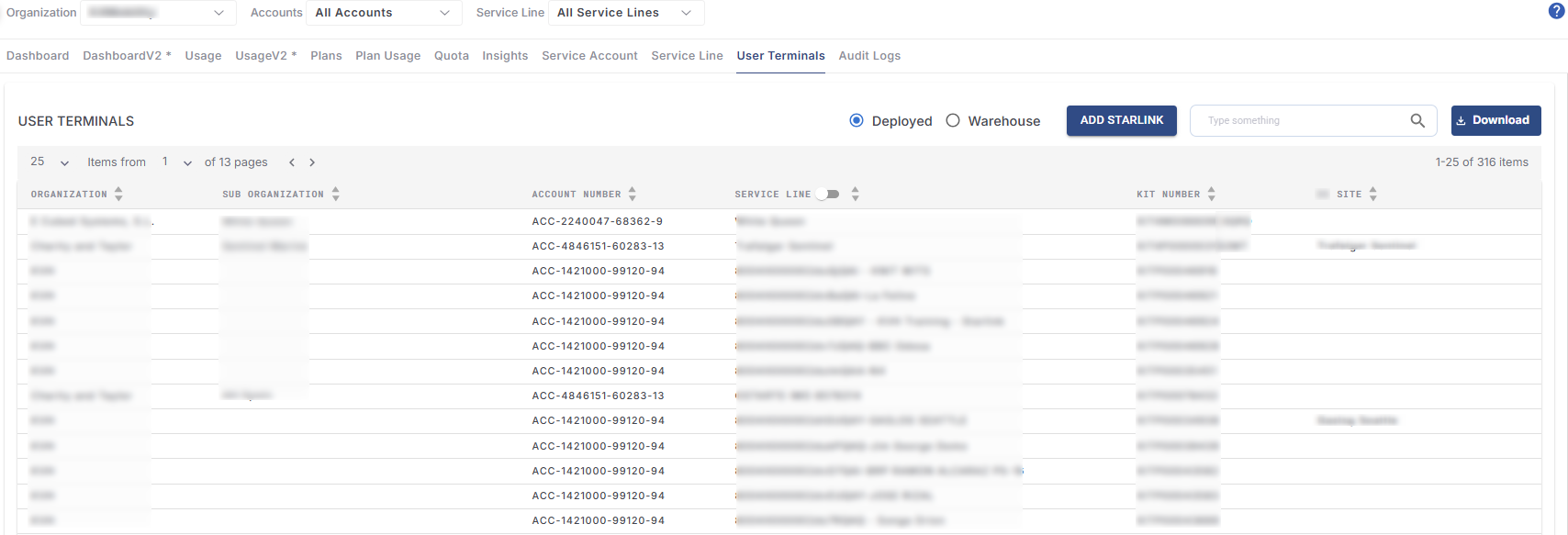
User Terminals Table
The table shows the following information:
Organization – Name of the Organization
Sub Organization – Name of the Sub-Organization
Account Number - Account Number of the User terminal
Service Line – Name of the Service Line
KIT Number - KIT Number of the User terminal
Site - Name of the Site associated with the User terminal
Click the Deployed button to view only the deployed User Terminals.
Click the Warehouse button to view only the In Warehouse User Terminals.
The Search field can be used to search for the User Terminals based on the Organization/Sub Organization/Starlink ID/Serial Number/KIT Number/Service Line/Kognitive Site.
Click Download button to download the User Terminals details in CSV format.
Add New Starlink User Terminal
Click the Add Starlink button to add a new starlink user terminal / kit.
-20251120-125558.png?inst-v=fc00cdc5-bdd5-43fe-995f-cbc9596ecc79)
Add New Starlink User Terminal
In the Select Account field, select the account to associate with the new Starlink user terminal.
In the next field, enter the Kit serial number of the new Starlink kit. The user can also enter the Starlink ID or Dish serial number as well. Multiple serial numbers can be entered by separating them with comma.
The system validates the entered Kit serial number/Starlink ID/Dish serial number and highlights it in green.
Select the Add Starlinks button to add the new to the system.
The Starlink user terminals can also be added in bulk. Click the Download Template button to download the sample file.
Enter the Kit serial numbers/Starlink IDs/Dish serial numbers and save the file.
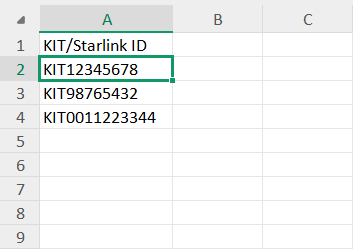
Template
Click the Upload CSV button and upload the file.
The user terminals entered in the file will be validated by the system and valid user terminals will be added in bulk.